

SmartFlow allows you to customize the appearance of the product price in your offer to make it stand out. Here's a quick guide on how to use it.
Adding a Product Price:
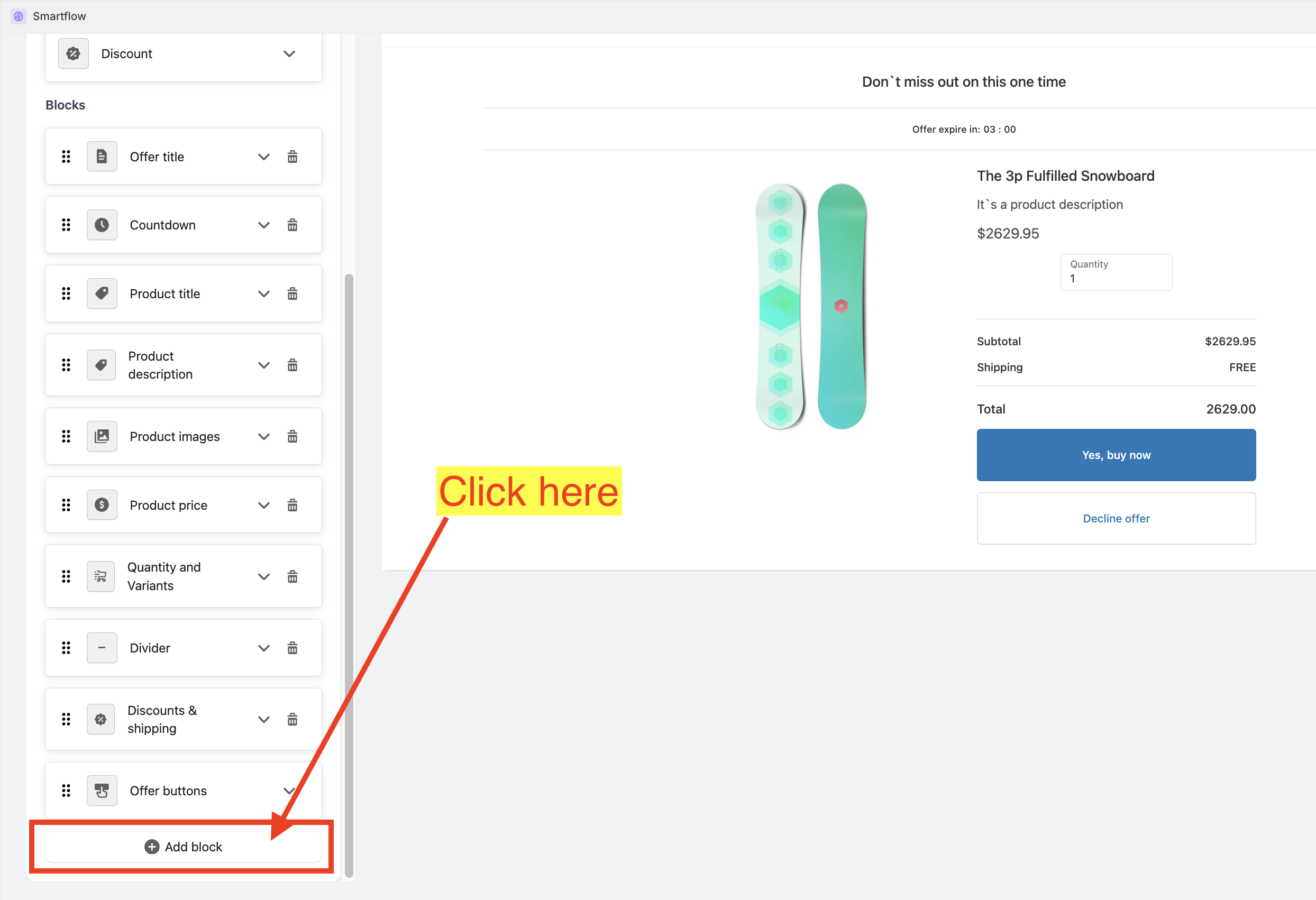
While in the Offer Editor, scroll down until you find the "Add block" button.
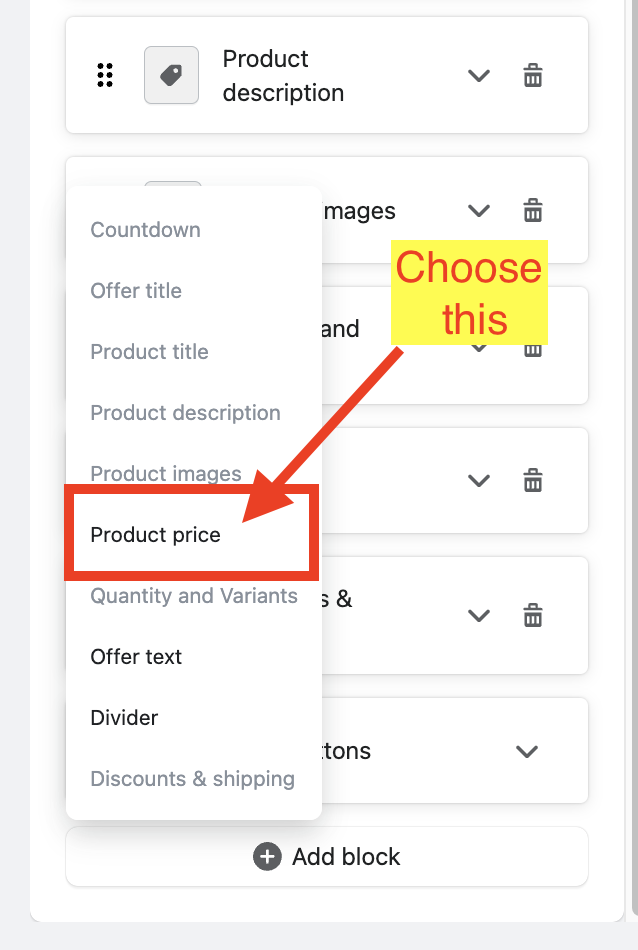
Choose "Product Price".
Customizing the Product Price:
Expand the Product Price Settings card.
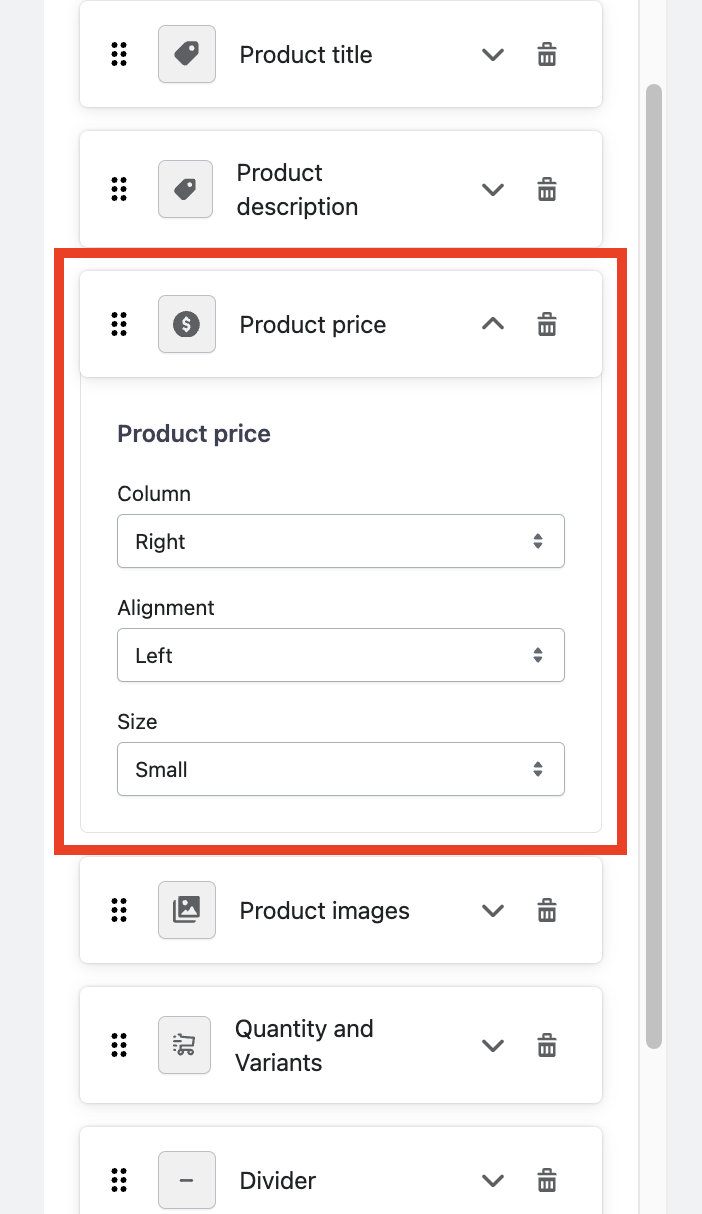
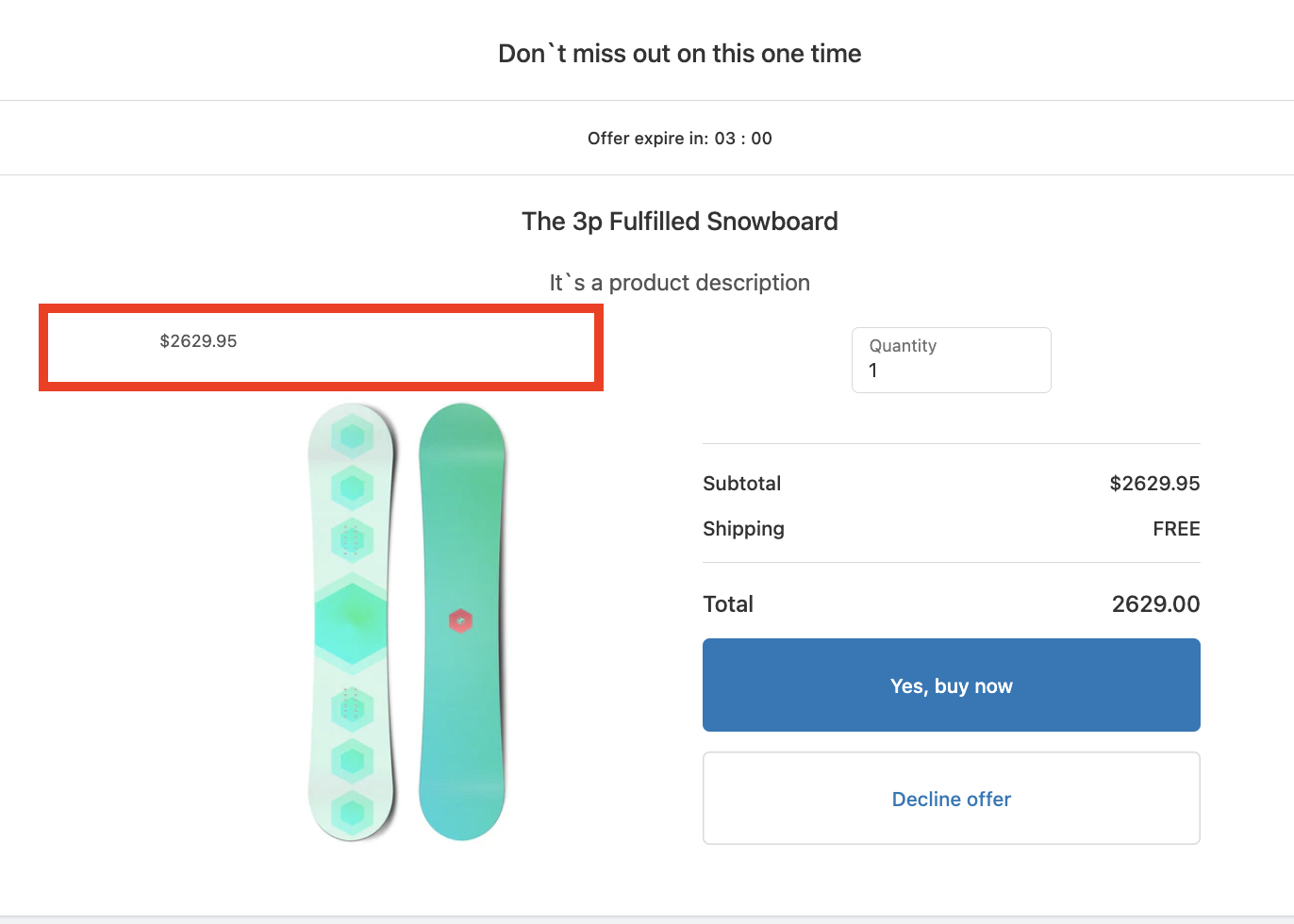
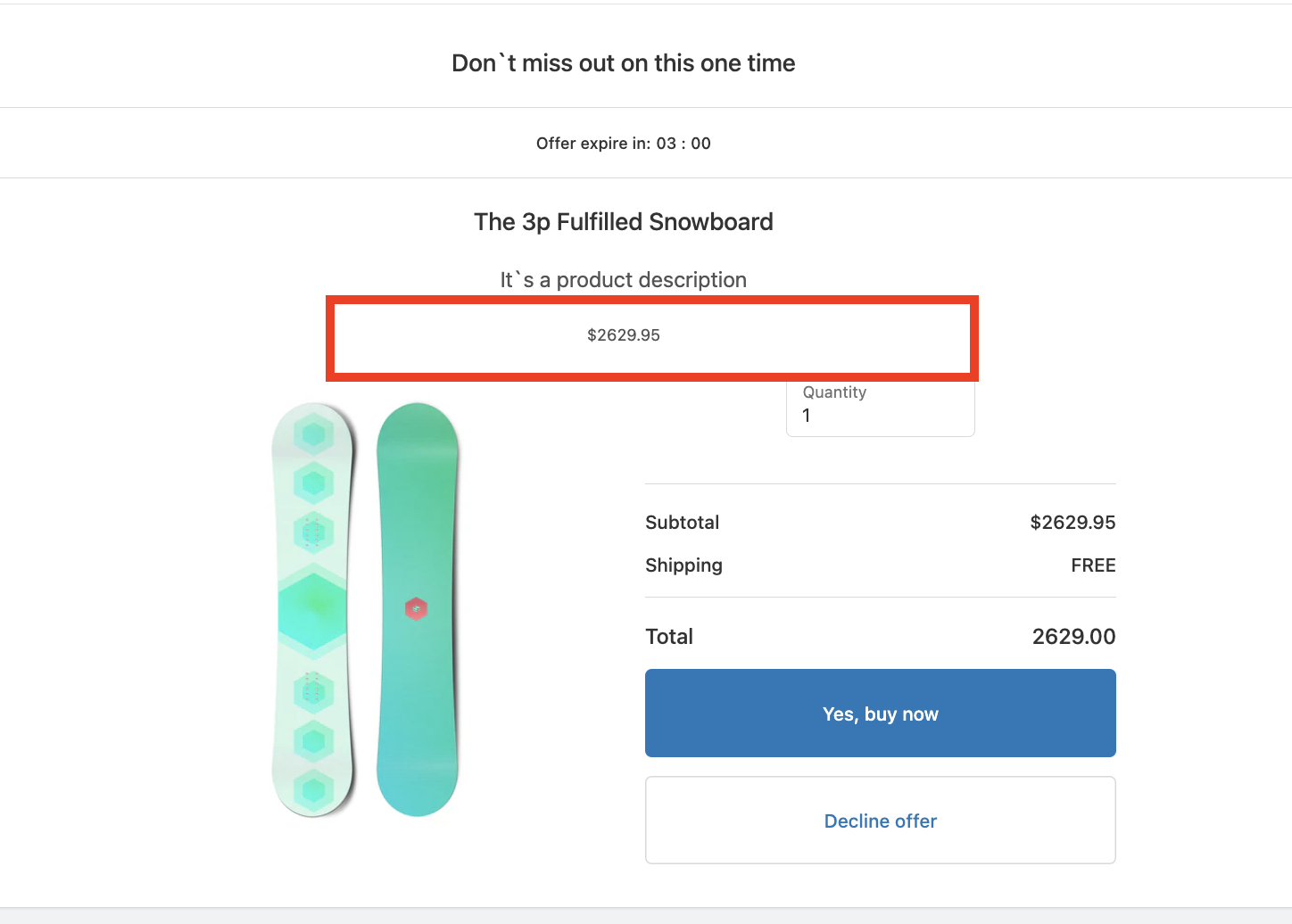
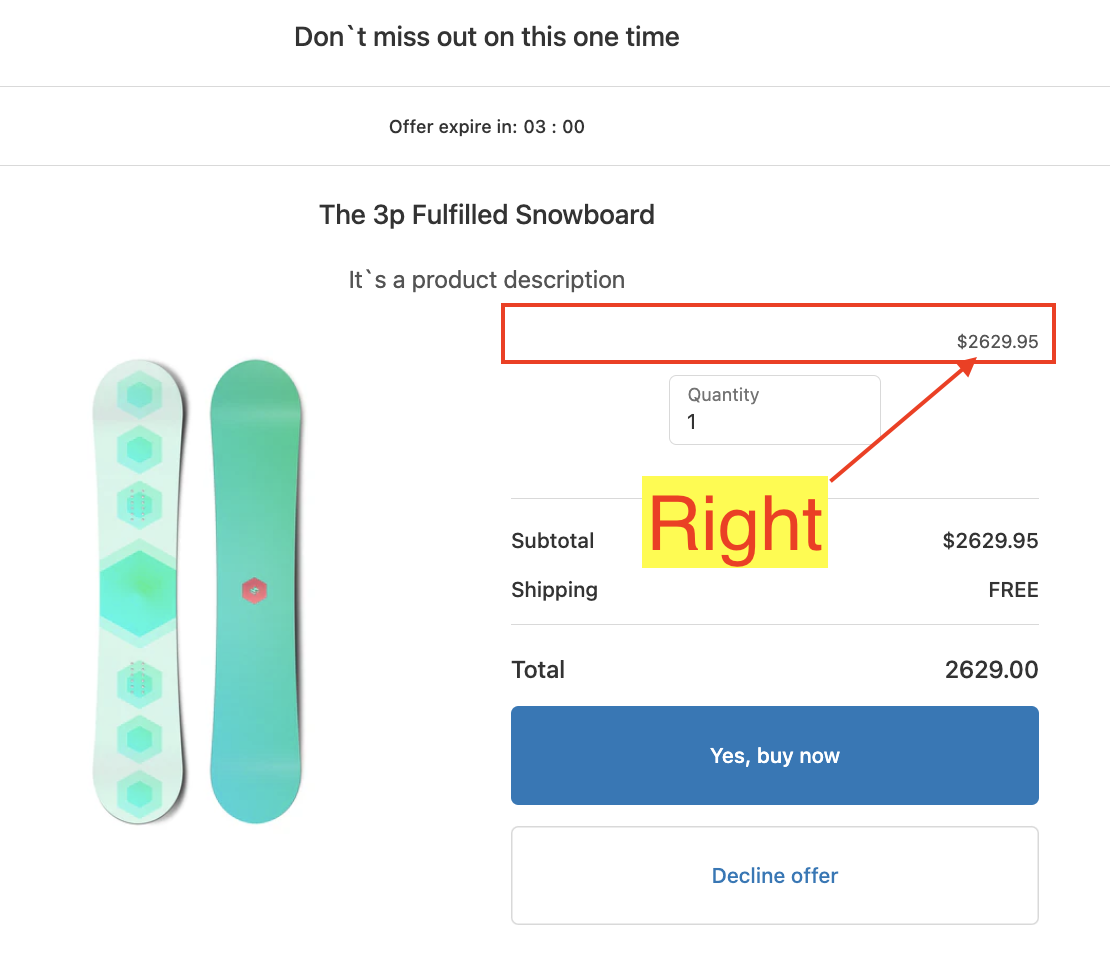
"Column" dropdown.
Right - places the Product Price at the right side of the offer.
Left - places the Product Price at the left side of the offer.
Both - places the Product Price at the center of the offer.
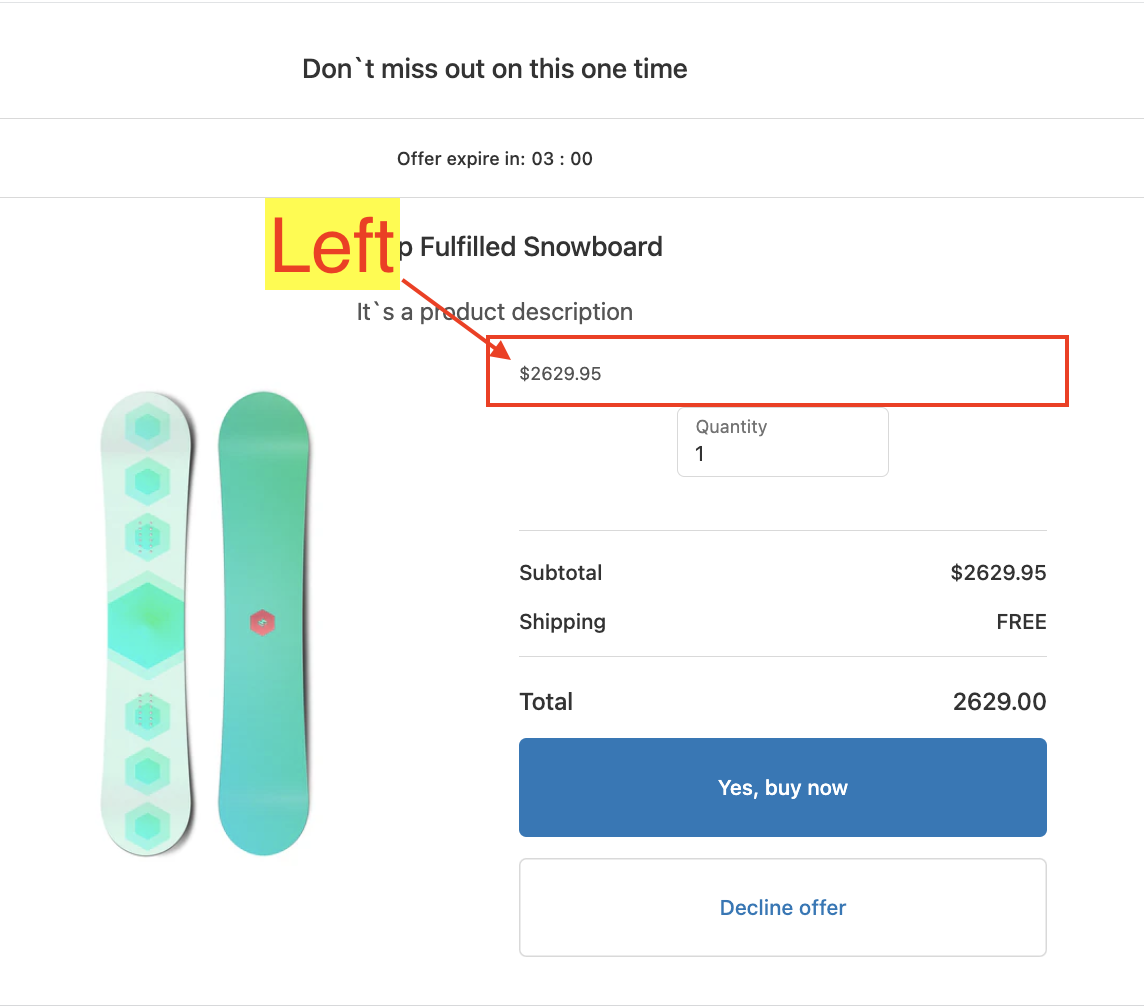
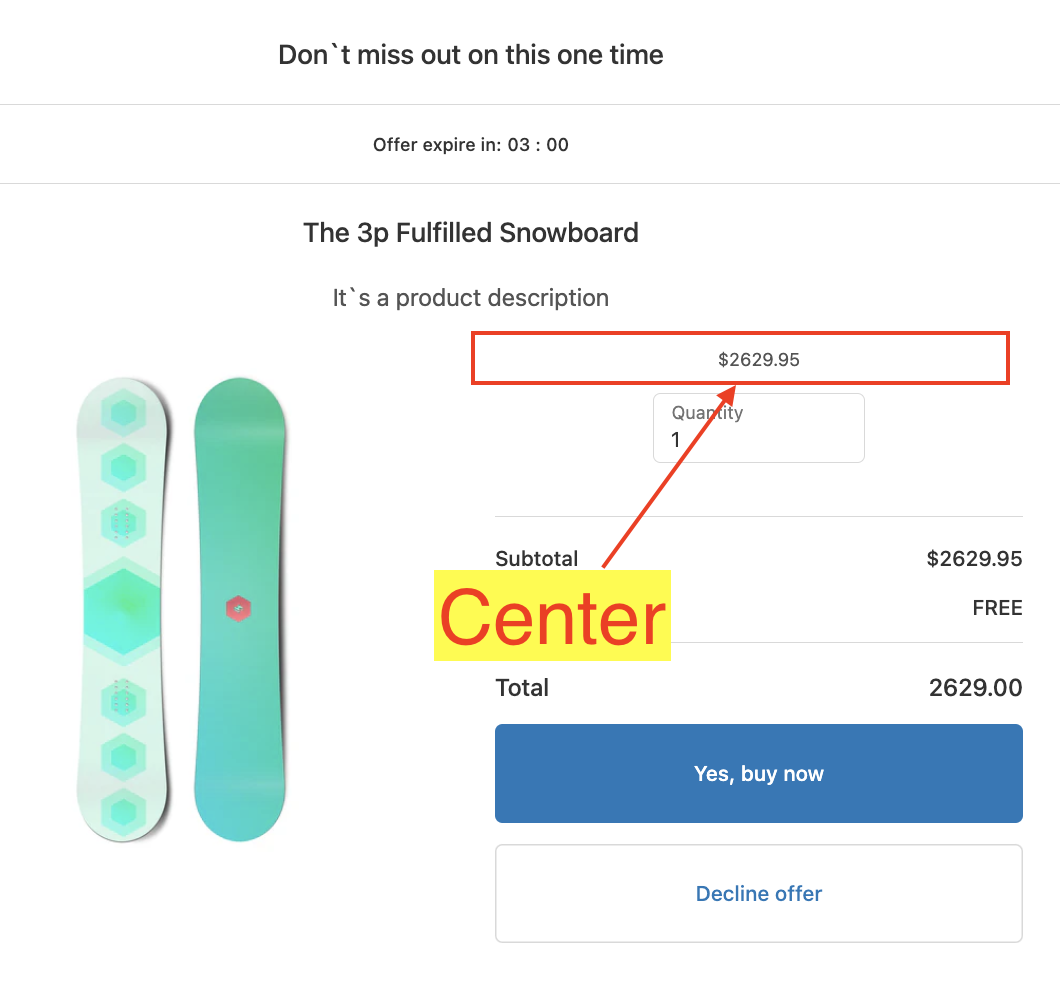
"Alignment" dropdown.
Left
Center
Right
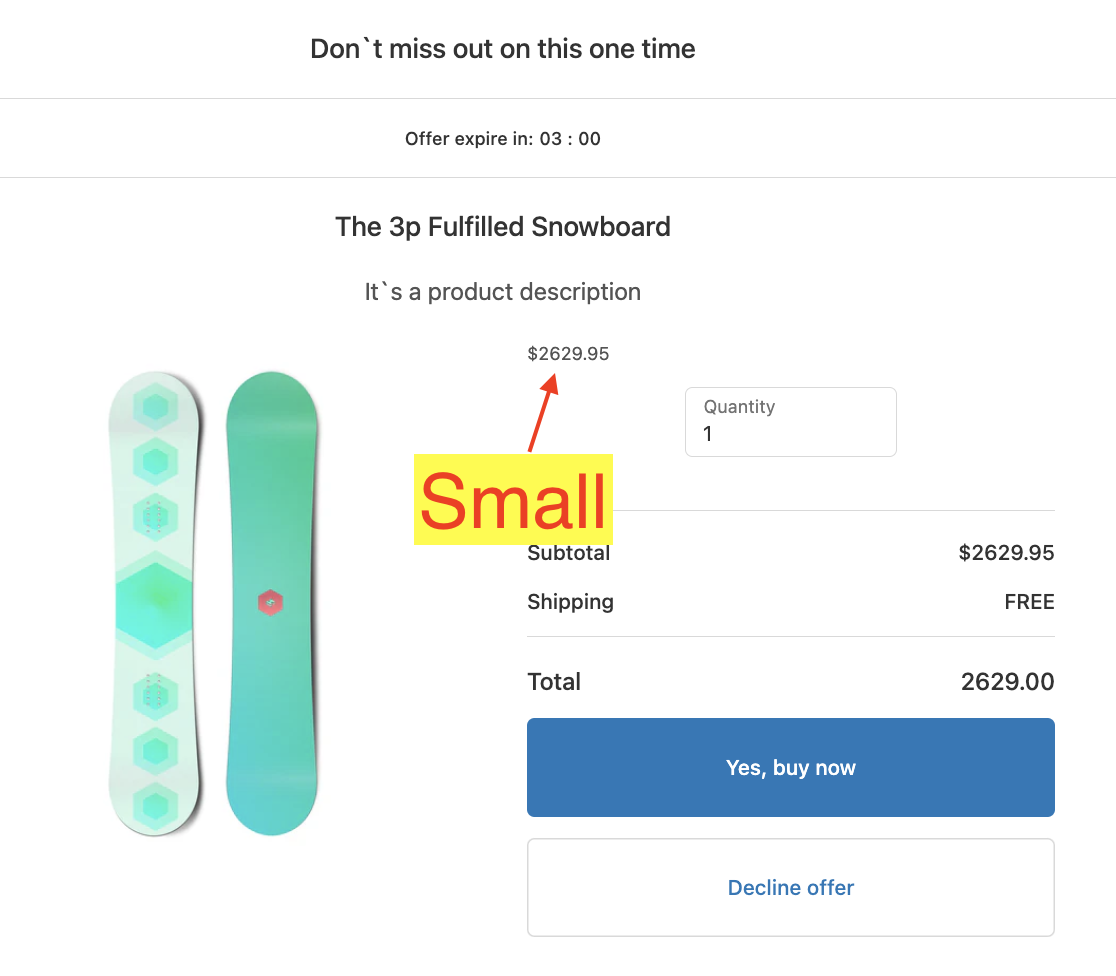
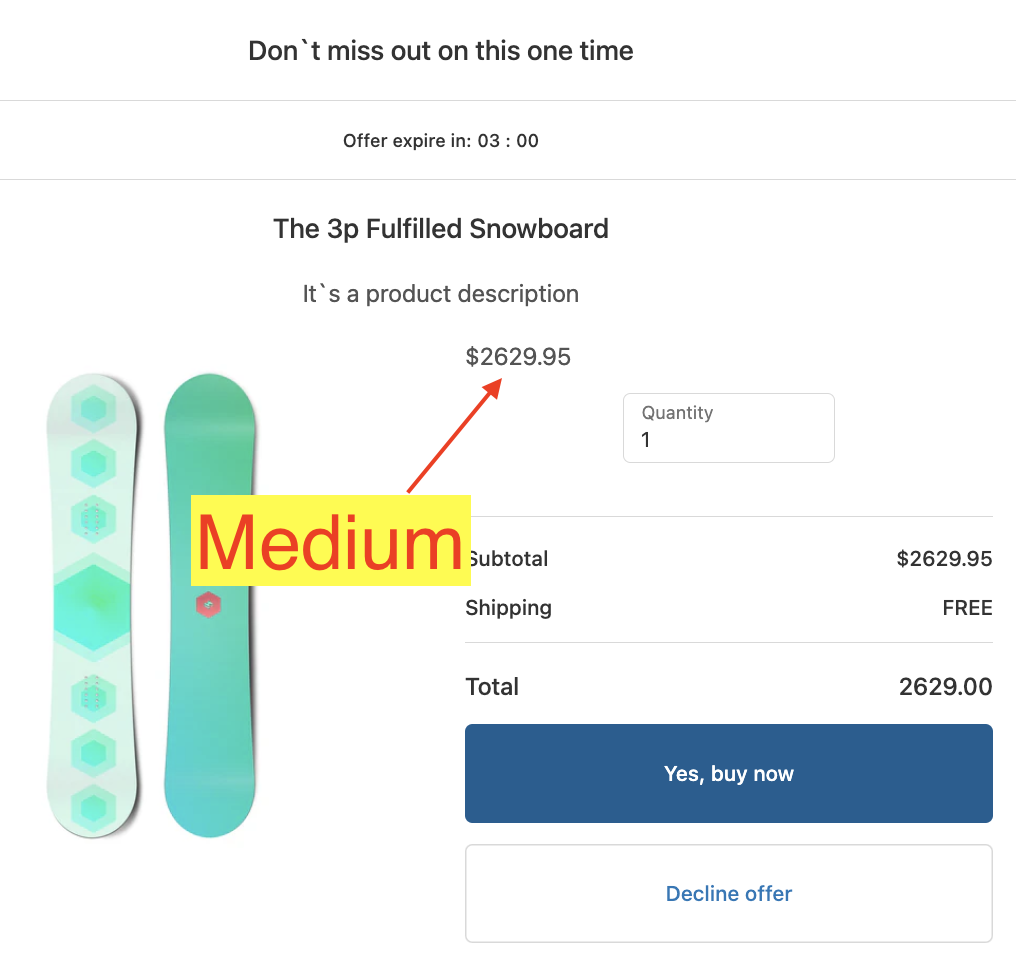
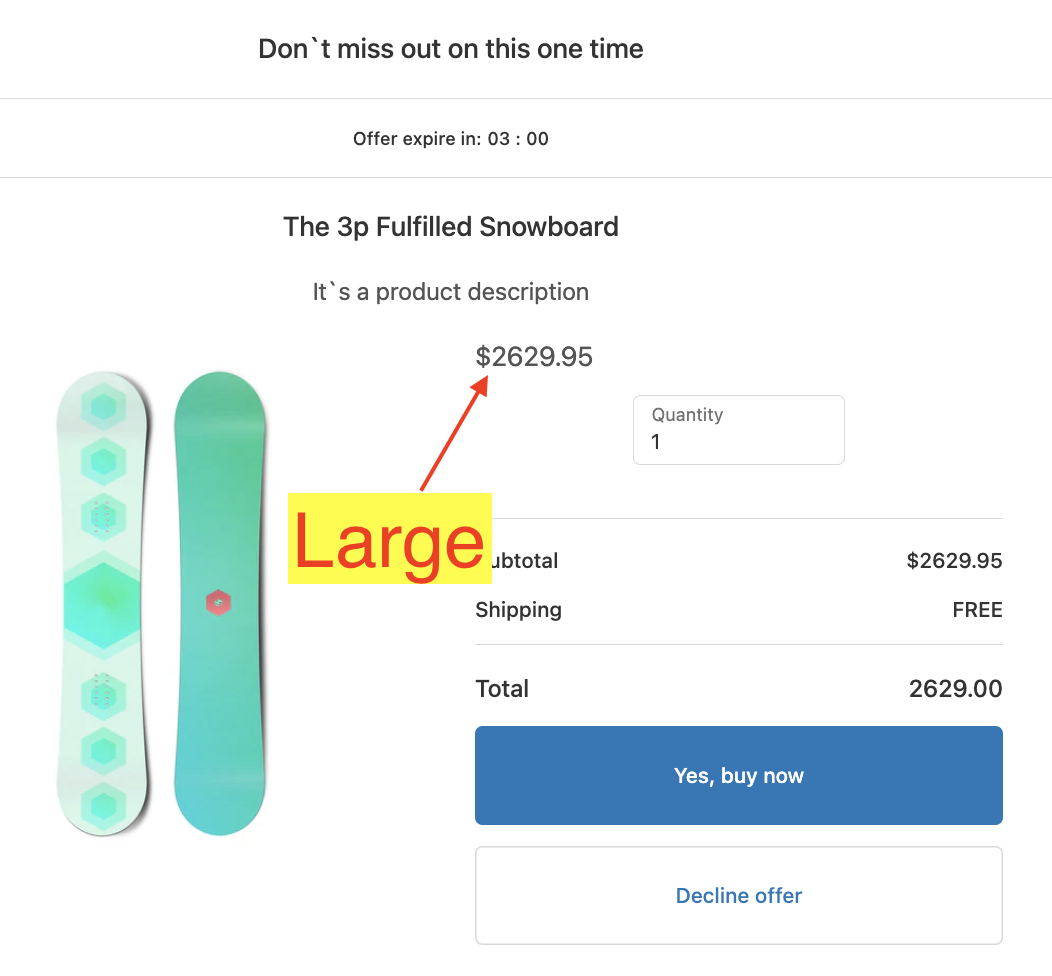
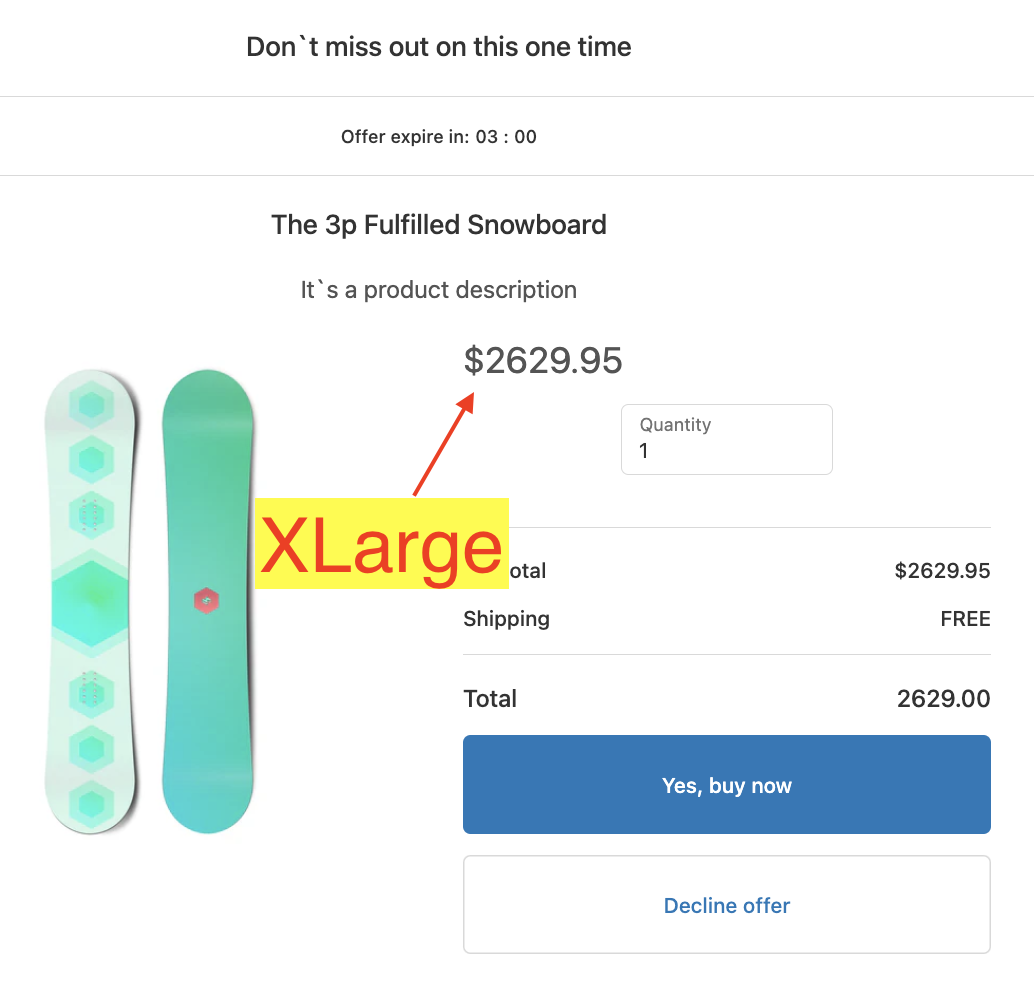
"Size" dropdown.
Small
Medium
Large
XLarge
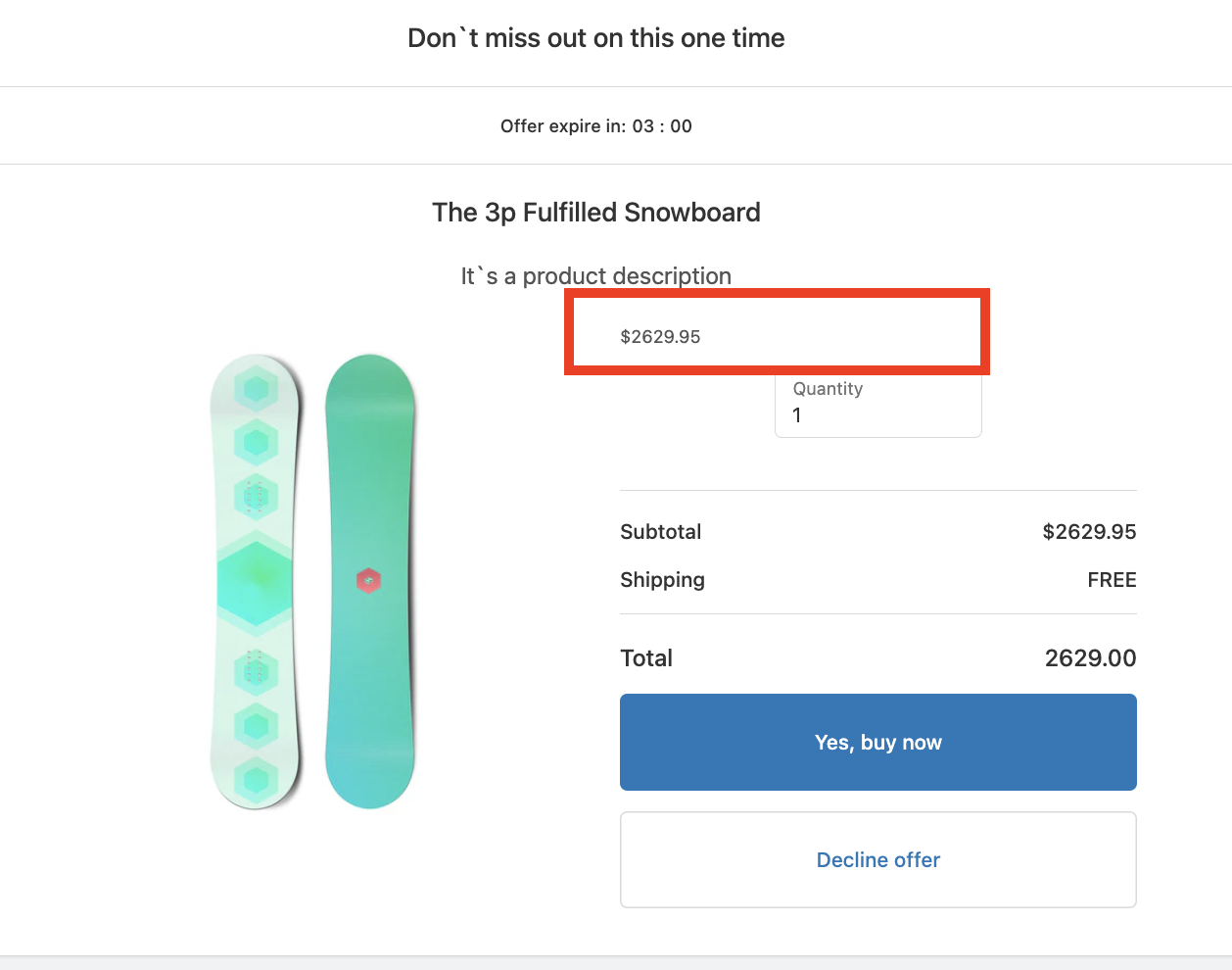
Note: If you want to apply discounts to the product price, please refer to the Discount Settings guide.
Keywords:
How can I adjust the alignment and column display for the product price in SmartFlow's Offer Editor?
What options do I have for customizing the size of the product price in SmartFlow's Offer Editor?
How can I edit the "Product Price" in the Offer Editor?