

SmartFlow allows you to add a quantity and variant picker to your Offer. Here's how:
Adding a Quantity Picker
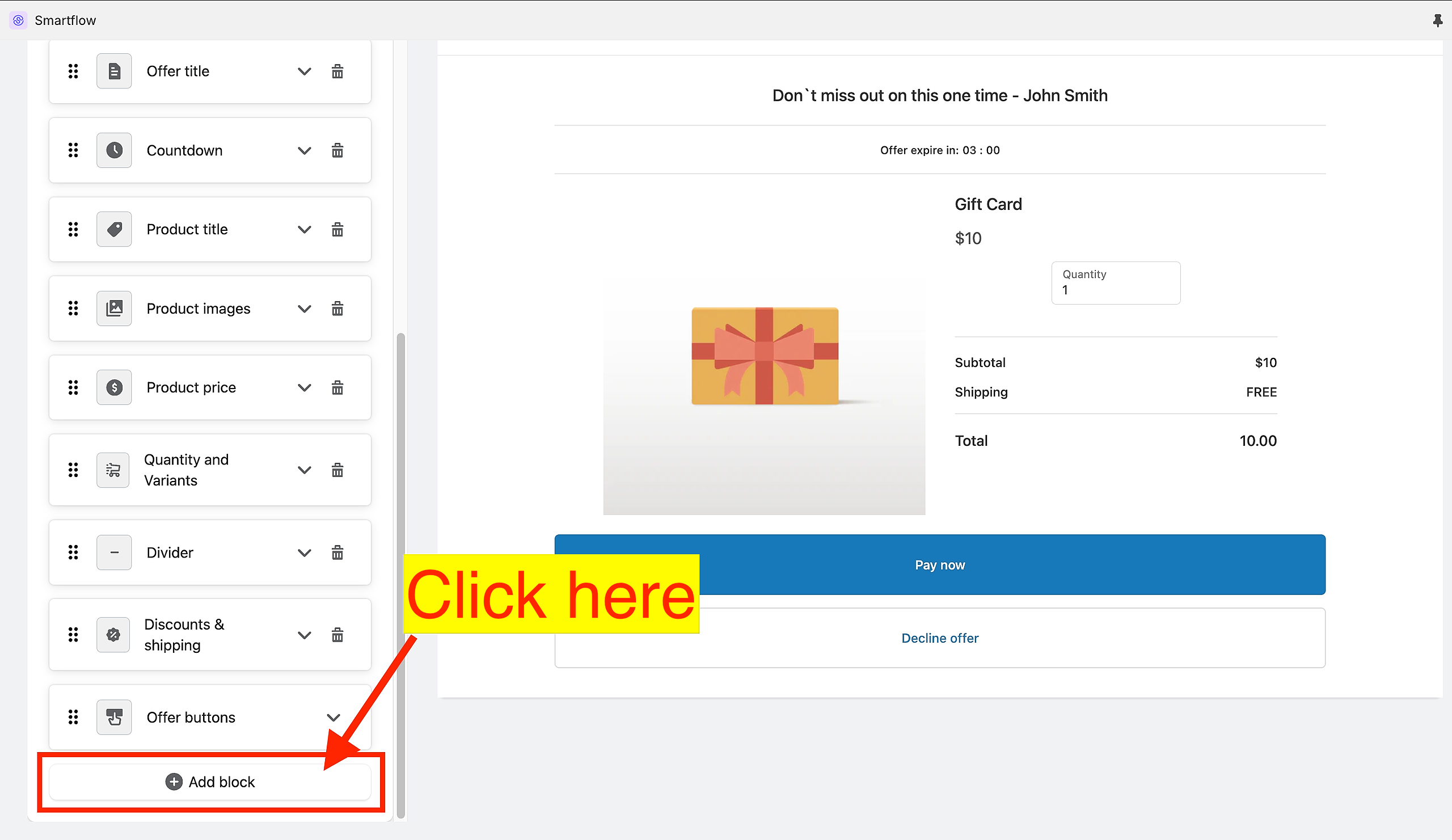
While in the Offer Editor, scroll down until you find the "Add block" button.
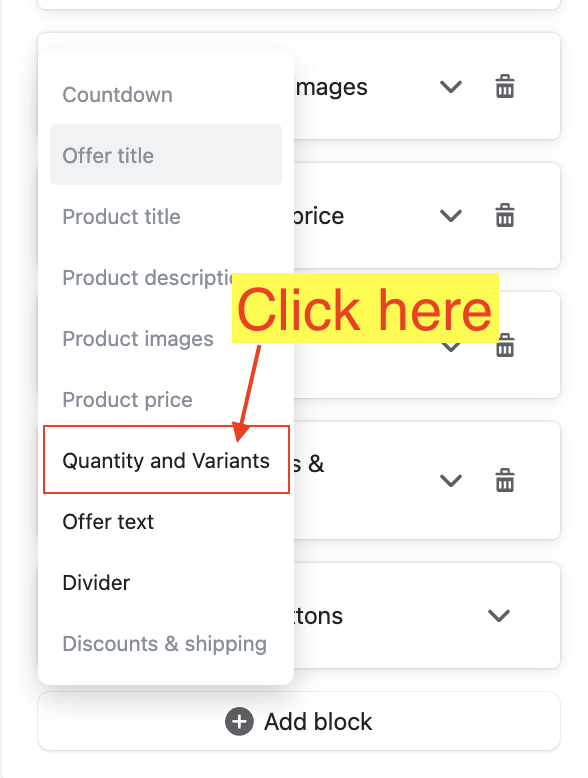
Choose "Quantity and Variants".
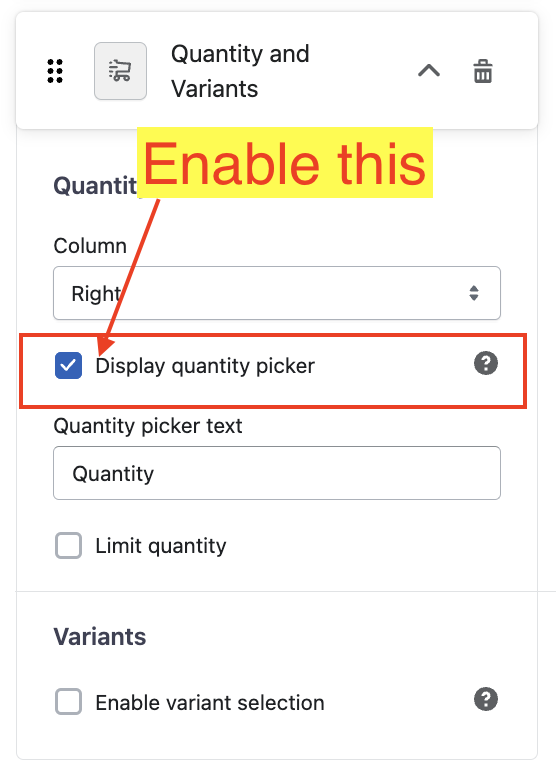
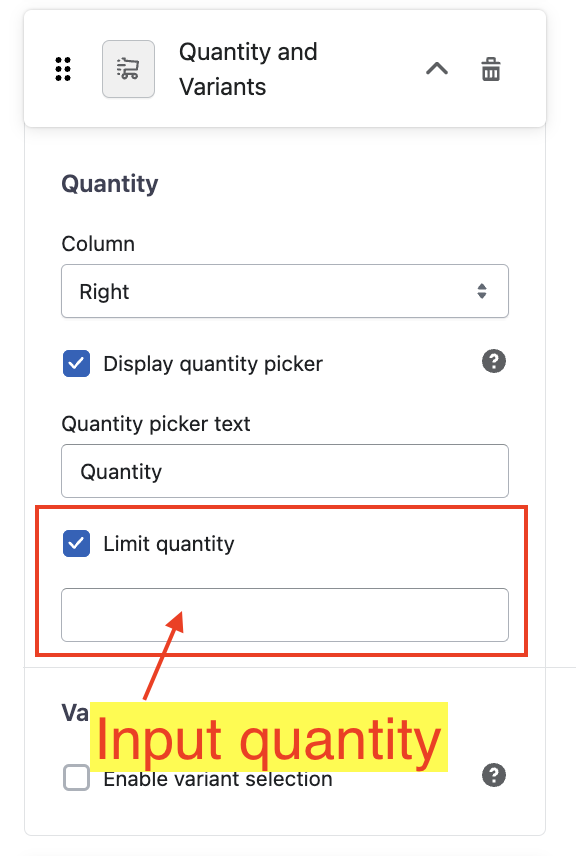
Enable the "Display quantity picker" checkbox.
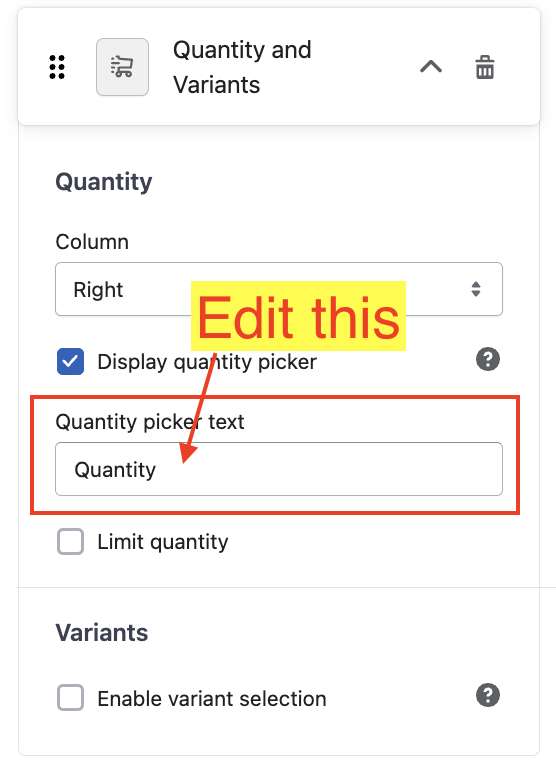
If you want to customize the picker text, just edit the "Quantity picker text".
If you want to limit the quantity that your customers can avail, enable the "Limit quantity" checkbox.
Adding a Variant Picker
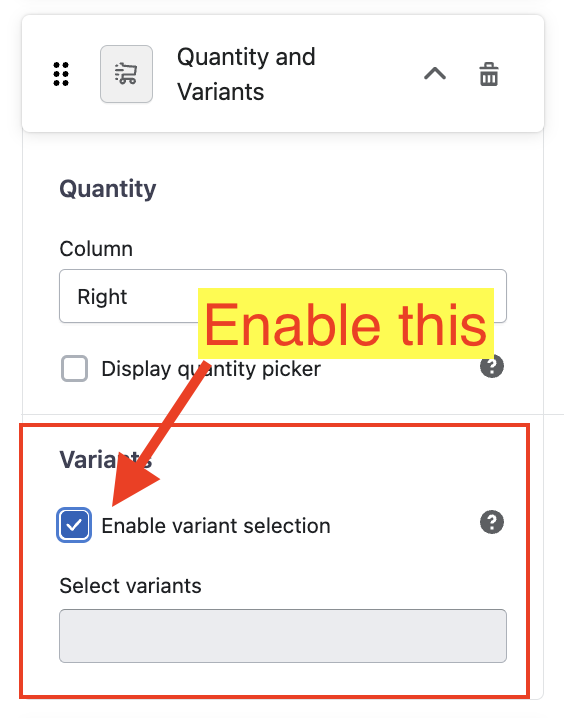
In the same settings card, enable the "Enable variant selection" checkbox.
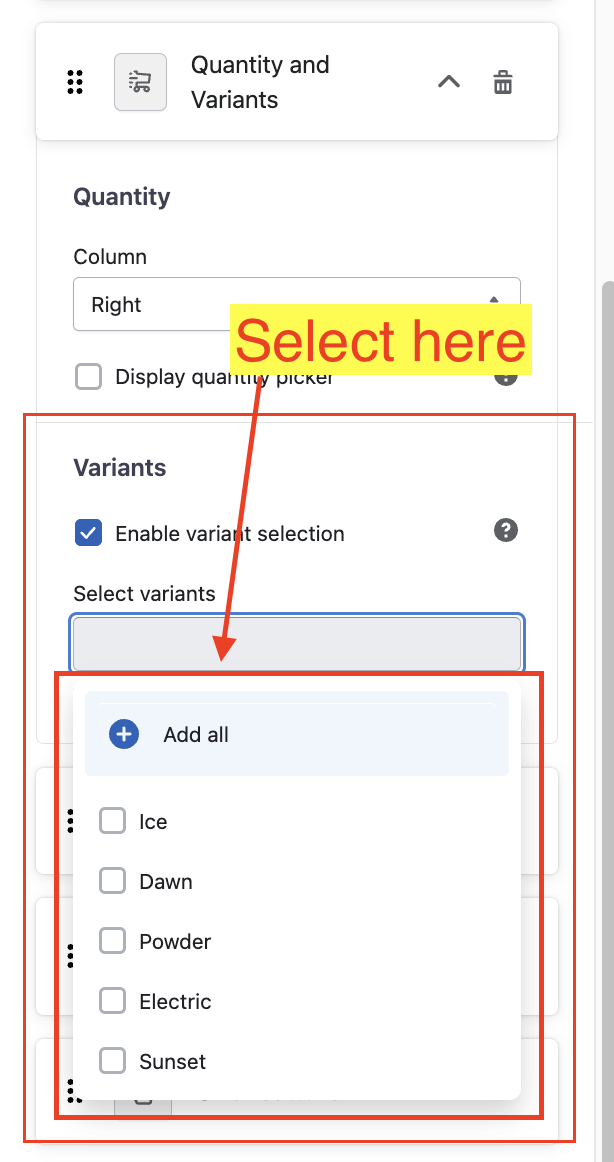
In the "Select variants" field, select which variants will be available to your customers.
Others
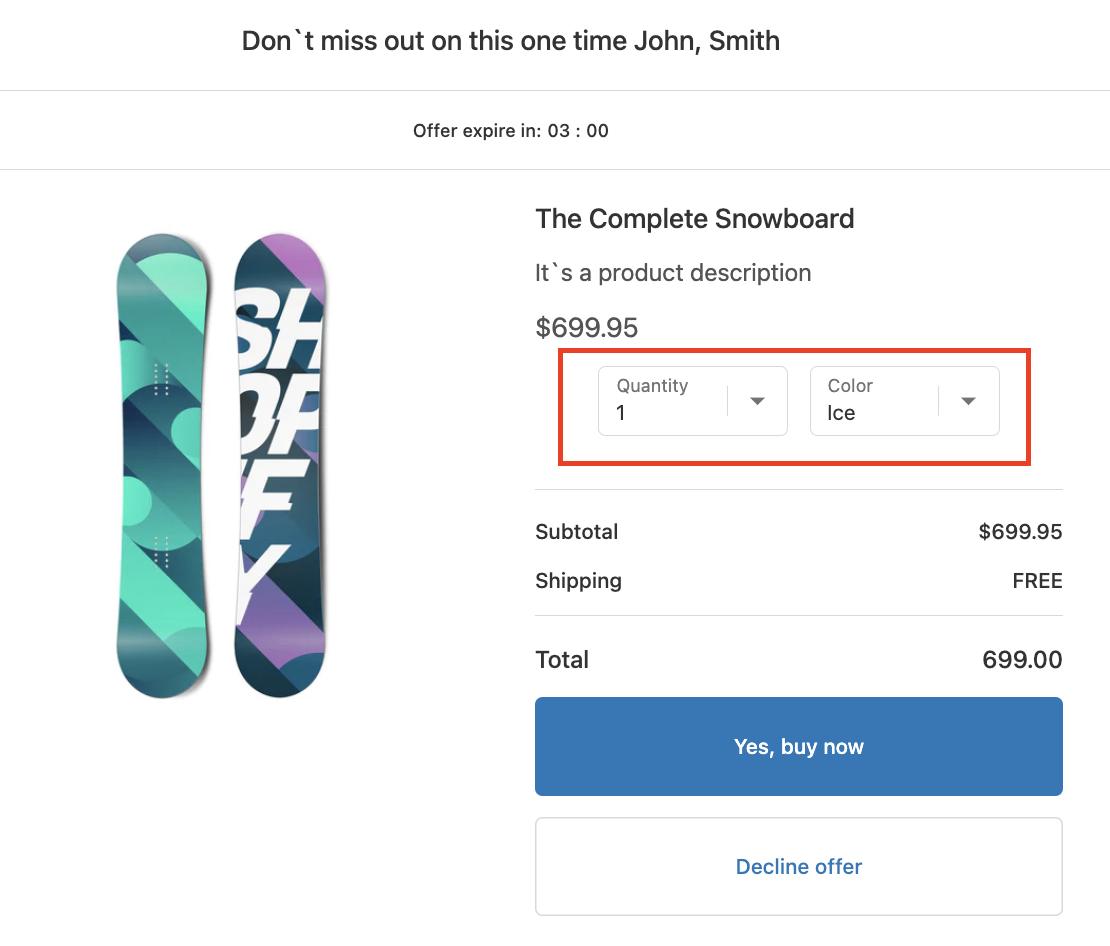
"Column" dropdown
Right - places the Quantity and Variants at the right side of the offer.
Left - places the Quantity and Variants at the left side of the offer.
Both - places the Quantity and Variants at the center of the offer.
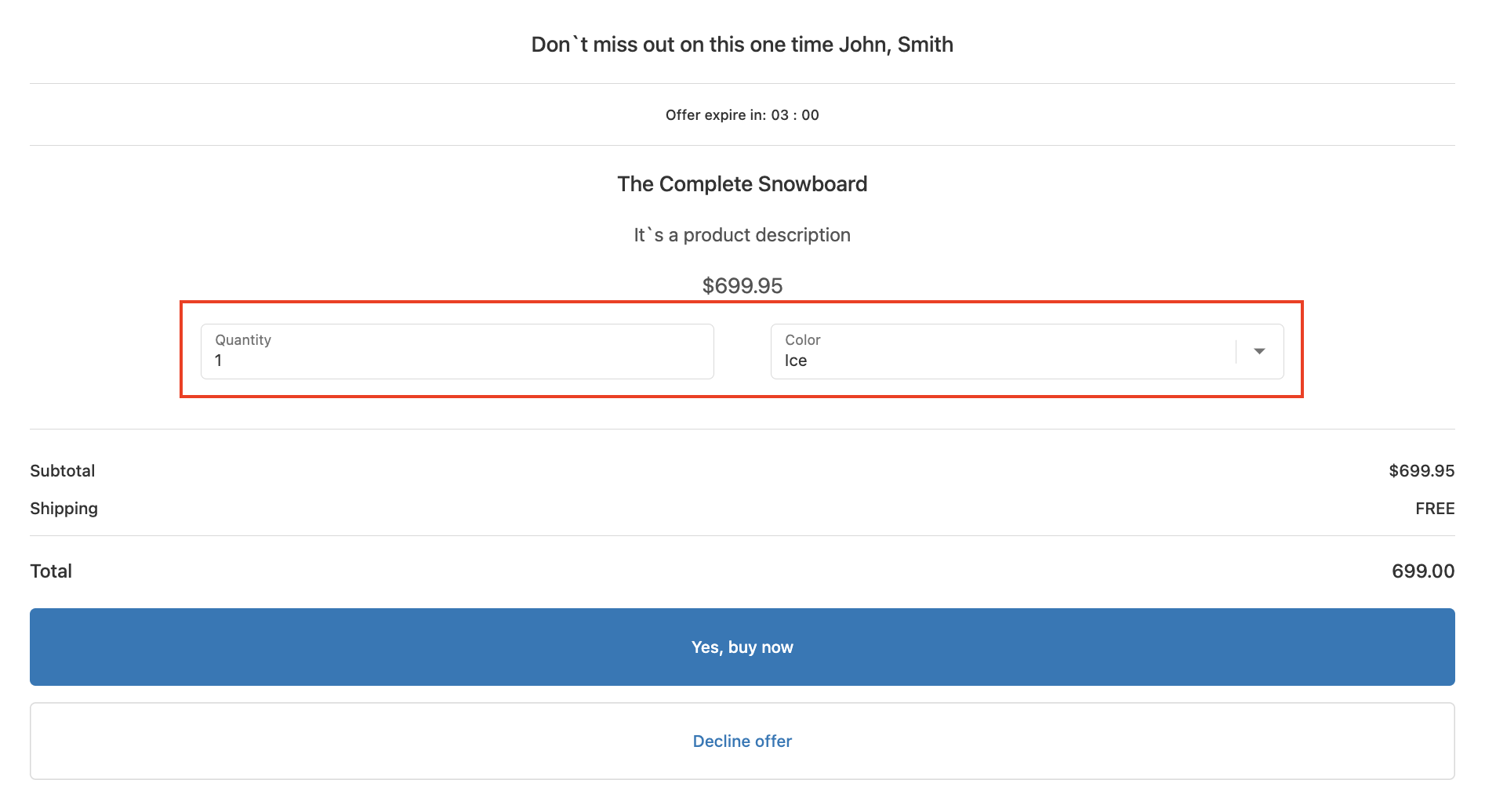
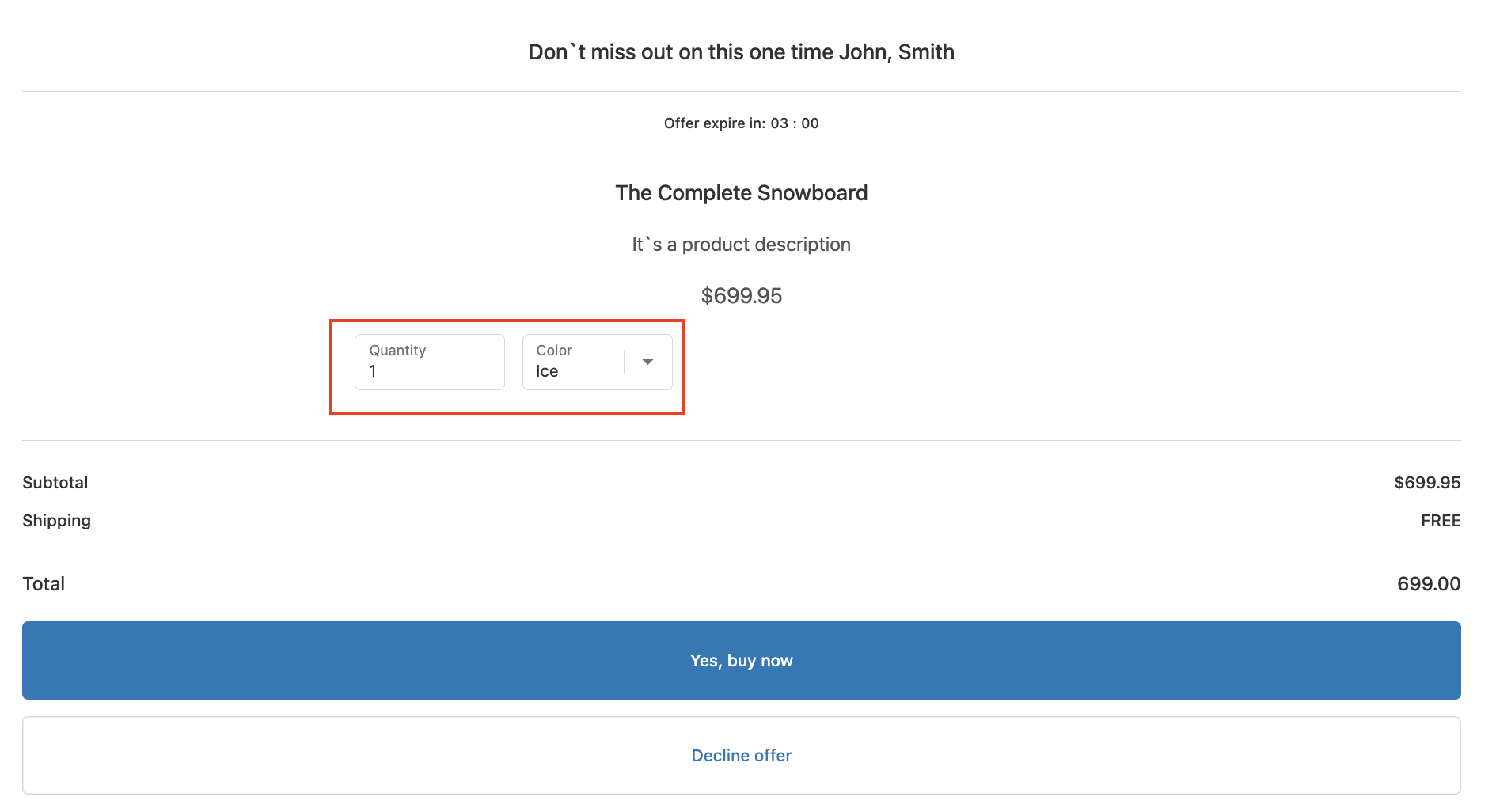
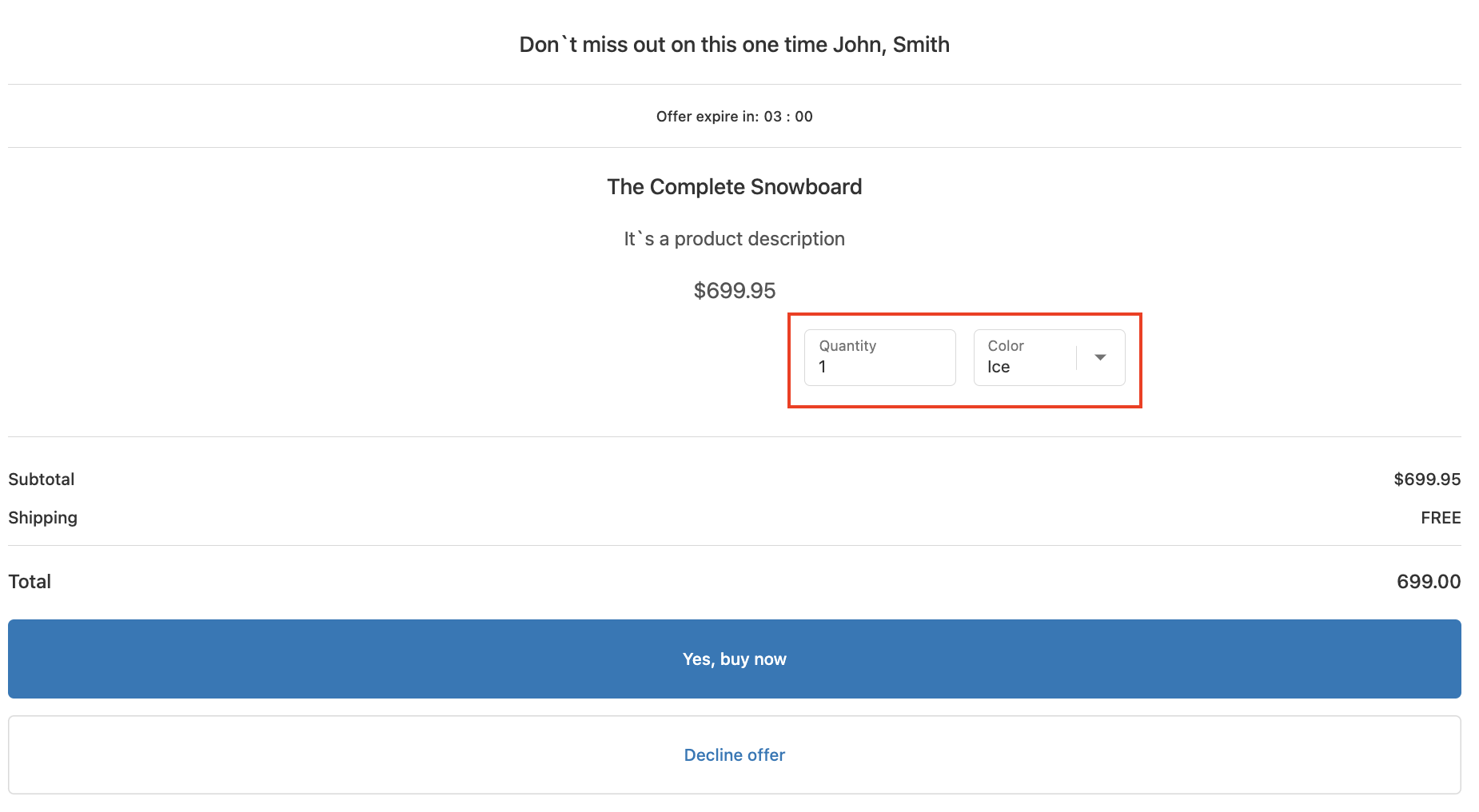
Here's an example of an offer with Quantity and Variants picker:
Keywords:
How can I adjust the alignment and column display for Quantity and Variants in the Offer Editor?
What options do I have for customizing the quantity picker and variant selection in SmartFlow's Offer Editor?
How can I edit the "Quantity and Variants" in the Offer Editor?