

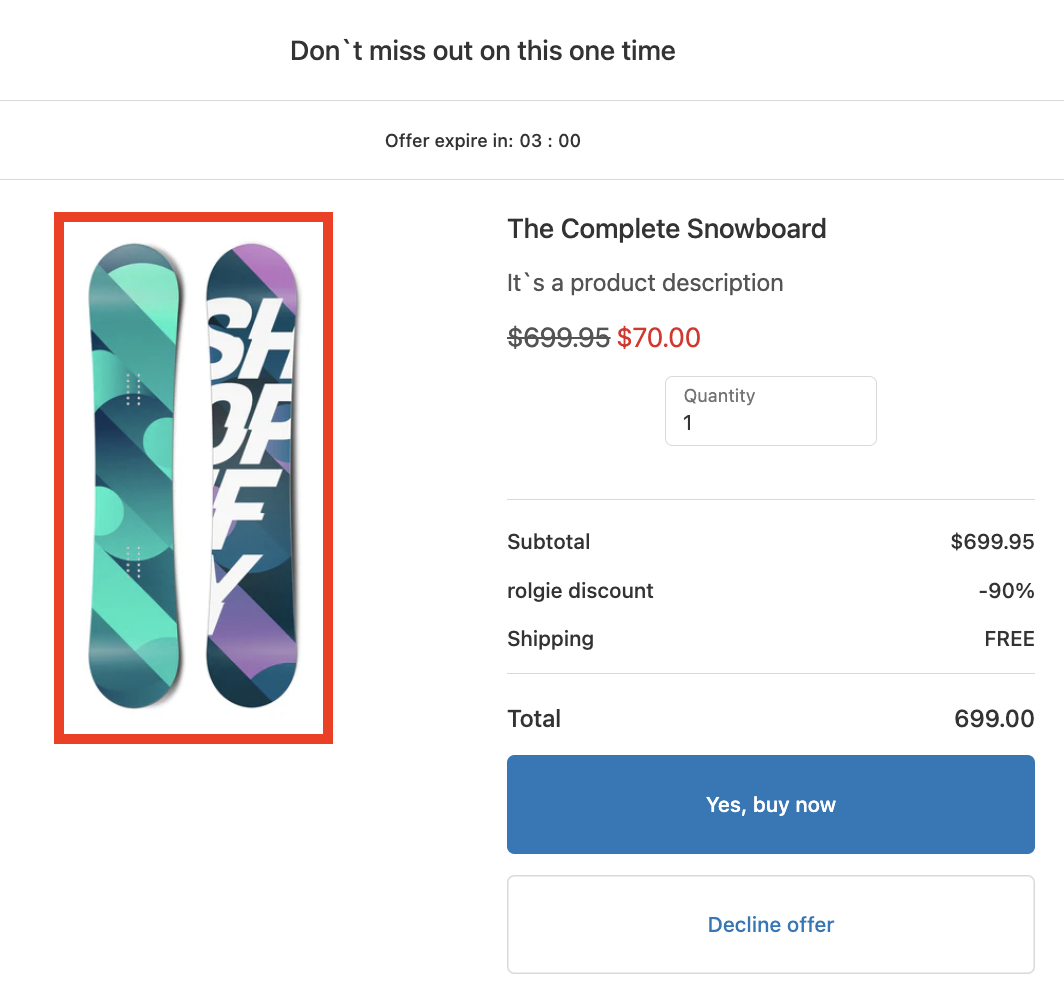
SmartFlow allows you to showcase the product you're trying to upsell by organizing how the images appear in the offer. Here's how:
Adding a Product Price:
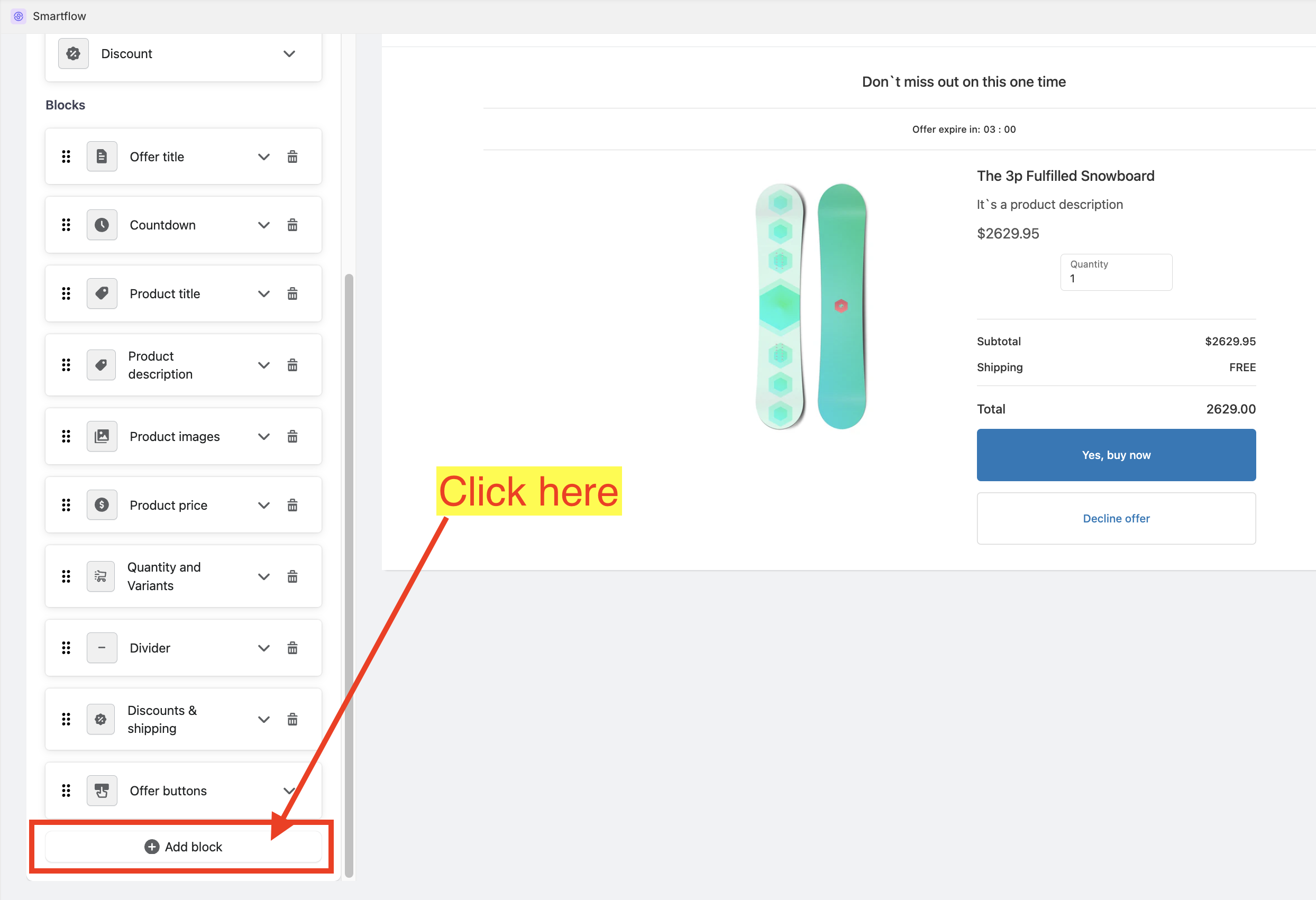
While in the Offer Editor, scroll down until you find the "Add block" button.
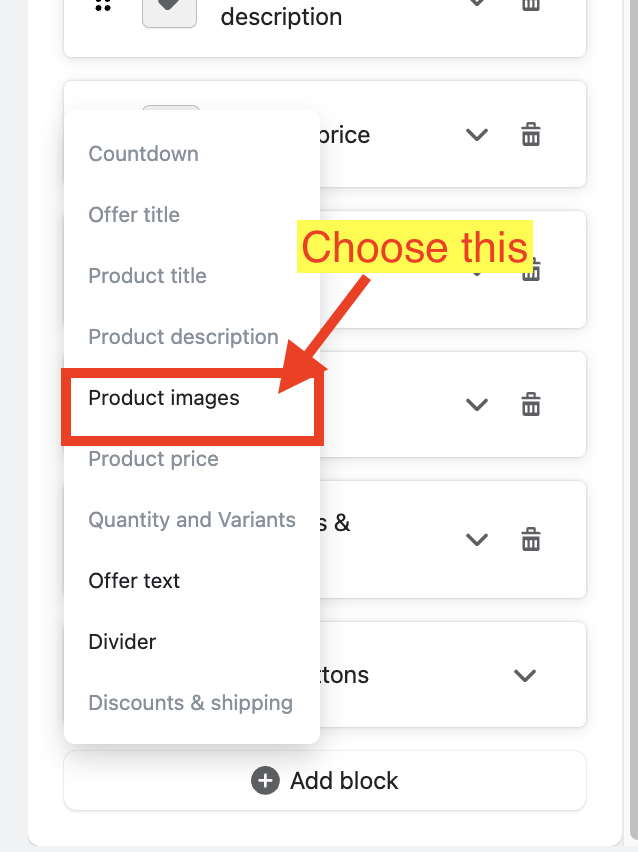
Choose "Product Images".
Customizing the Product Images:
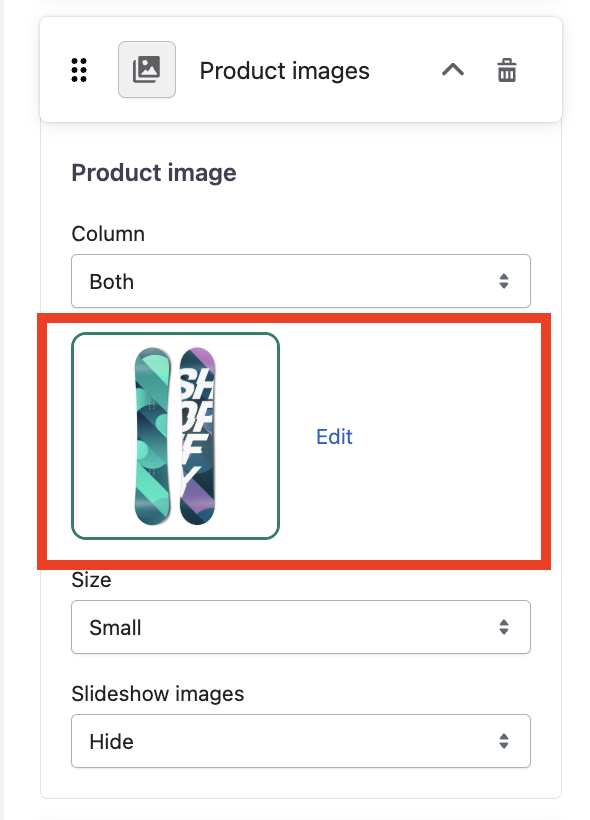
Expand the Product Images Settings card.
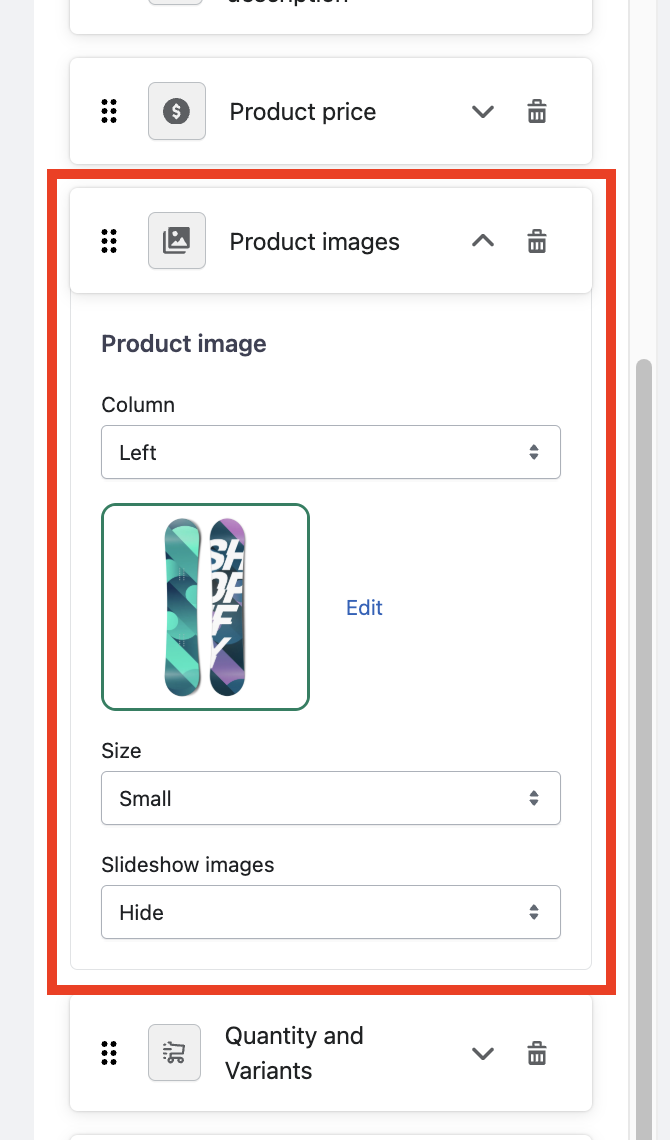
"Column" dropdown.
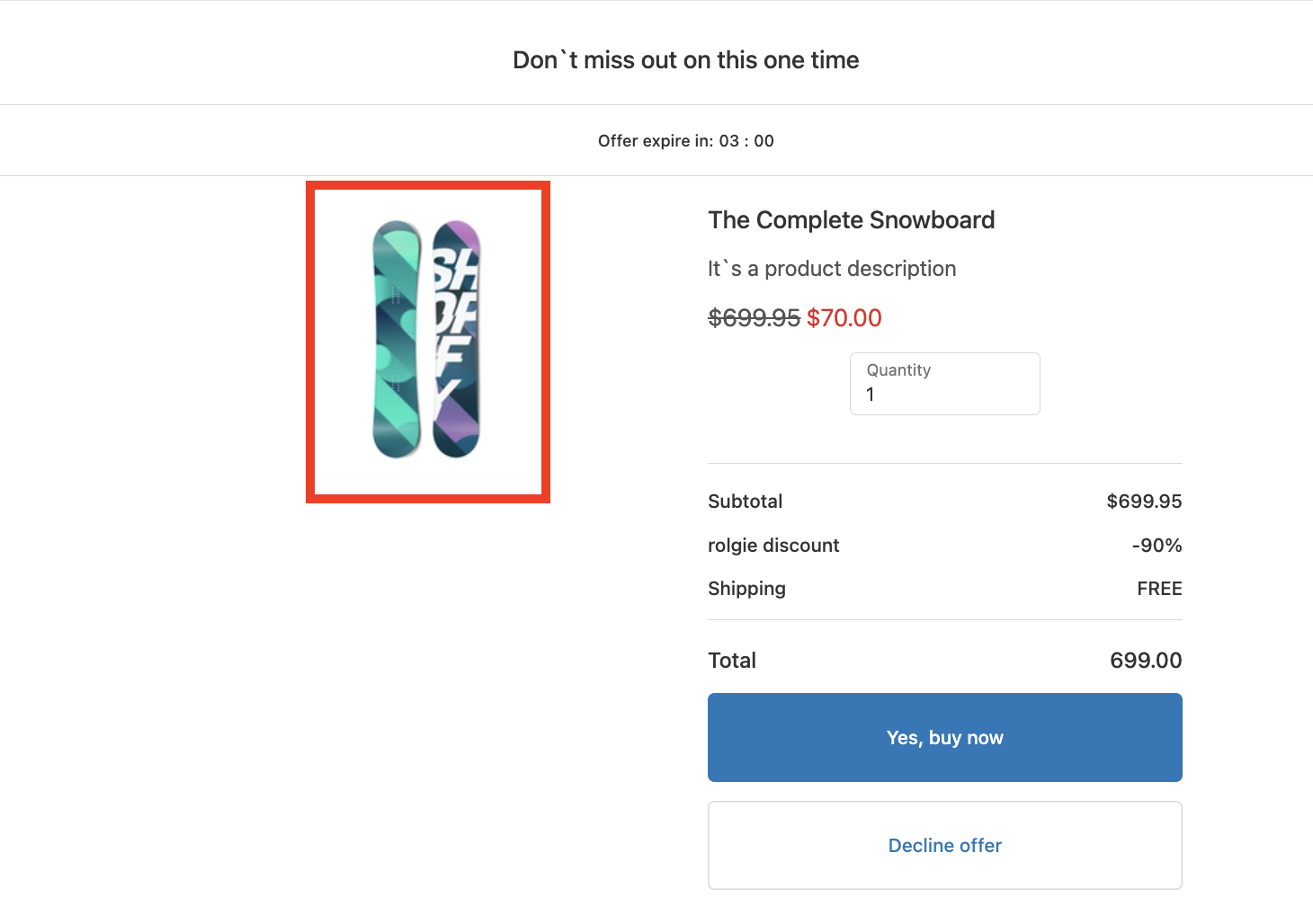
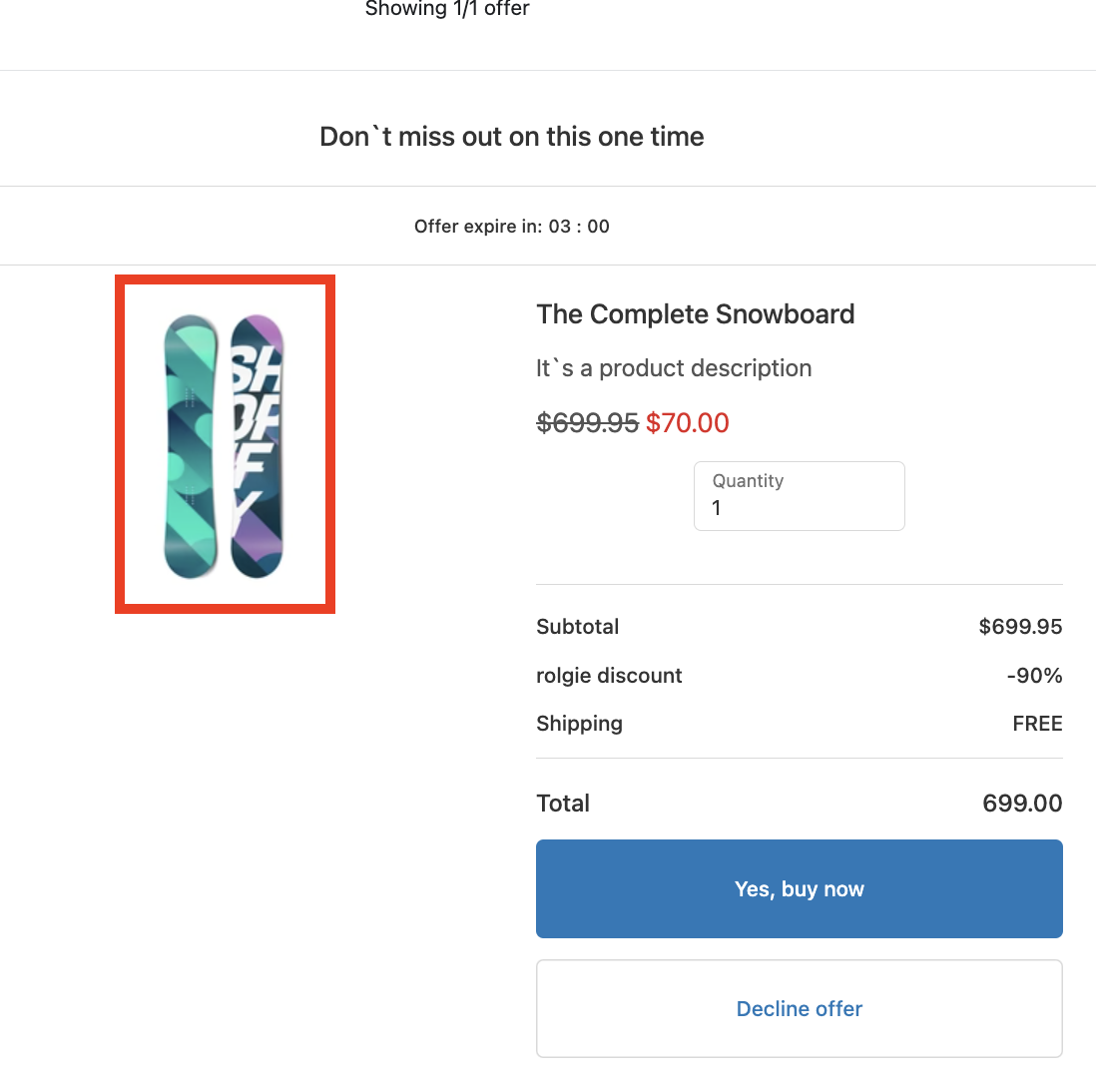
Right - places the Product Images at the right side of the offer.
Left - places the Product Images at the left side of the offer.
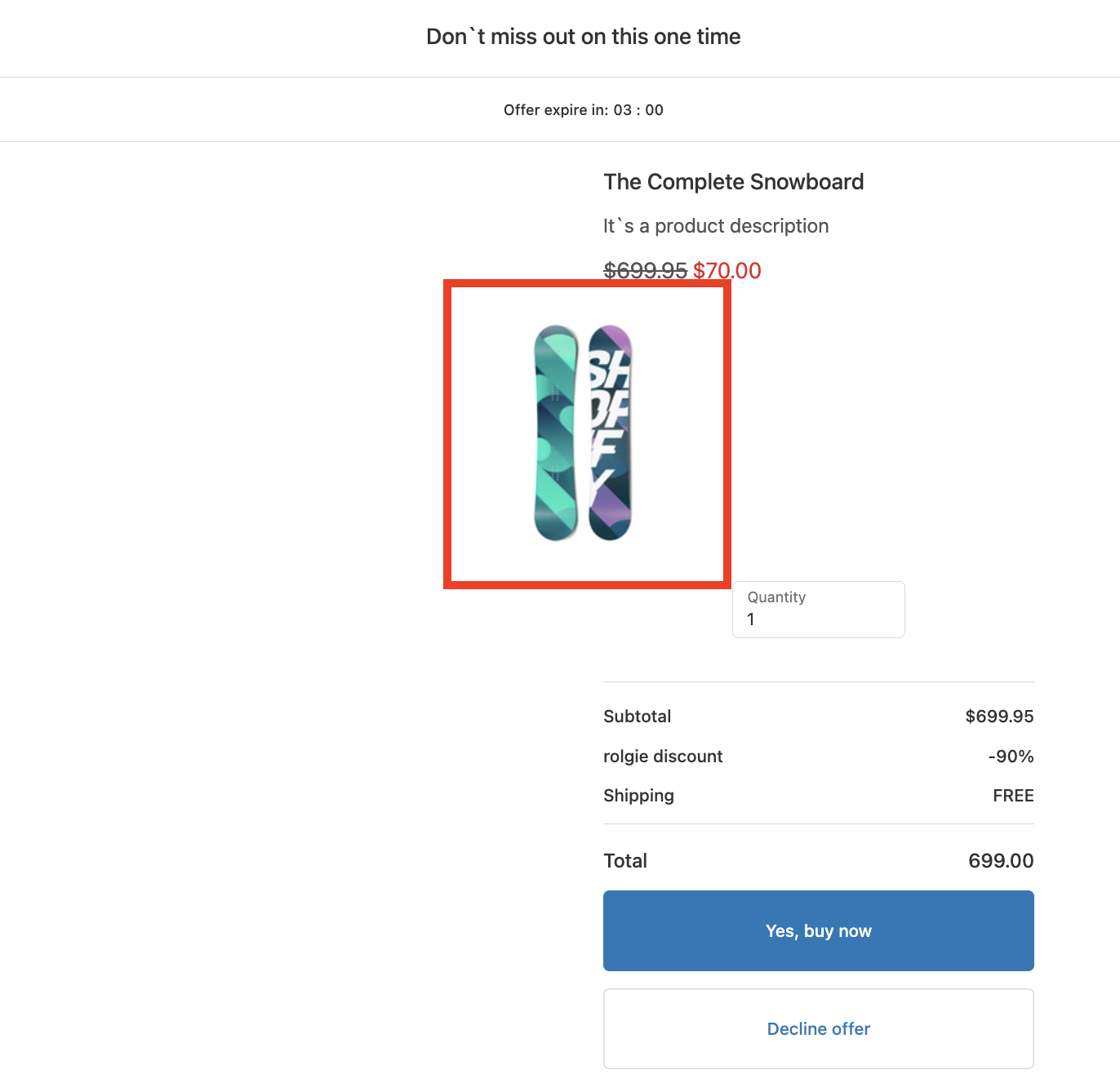
Both - places the Product Images at the center of the offer.
"Primary Image"
By default, the offer will use the product's primary image.
Use the "Edit" button to replace it with another image from the product listing.
"Size" dropdown - allows you to change the size of the product image.
Small
Large
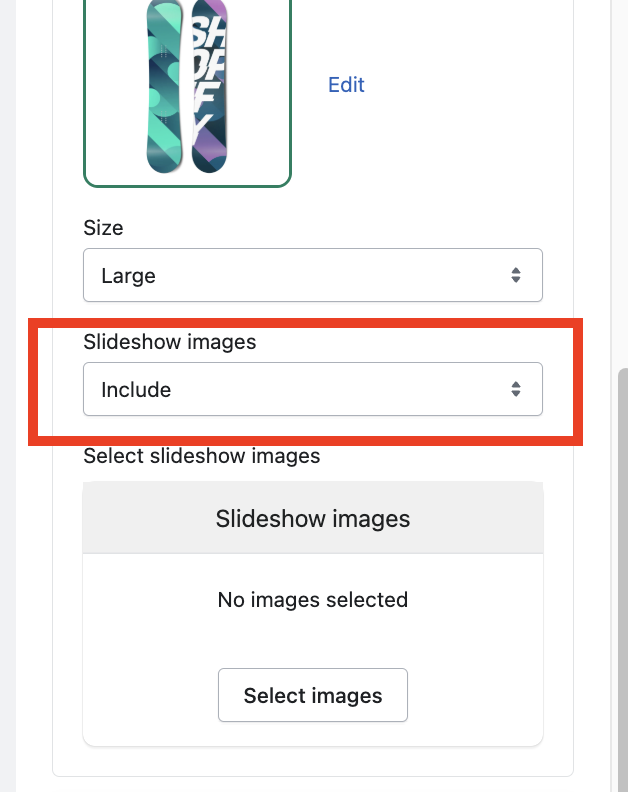
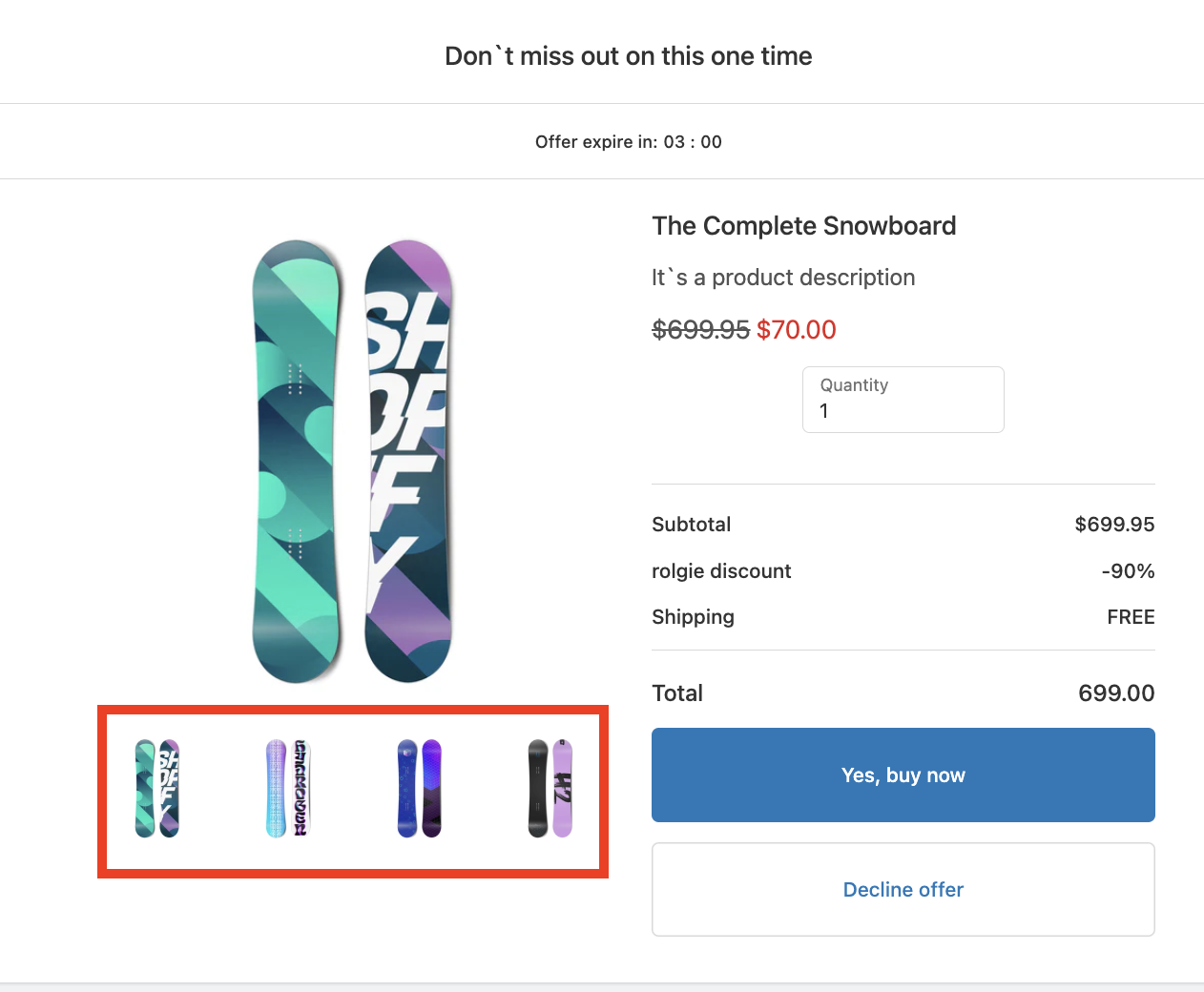
"Slideshow images" dropdown - allows you to add secondary images to your offer.
Choose "Include"
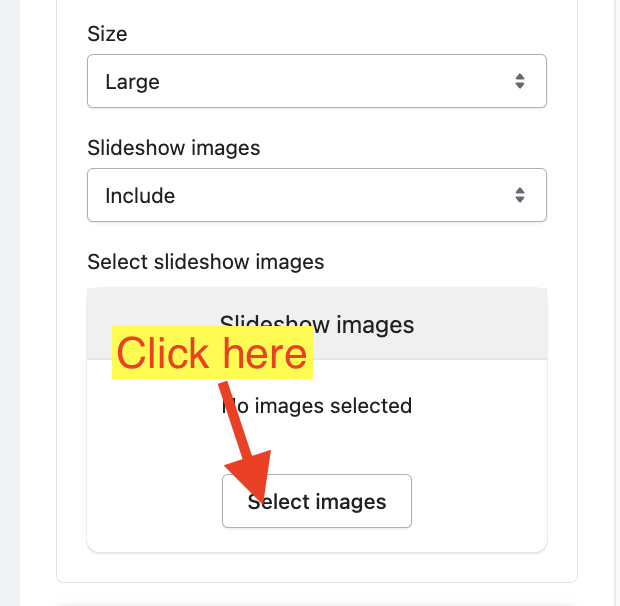
Click on the "Select image" button to add secondary images.
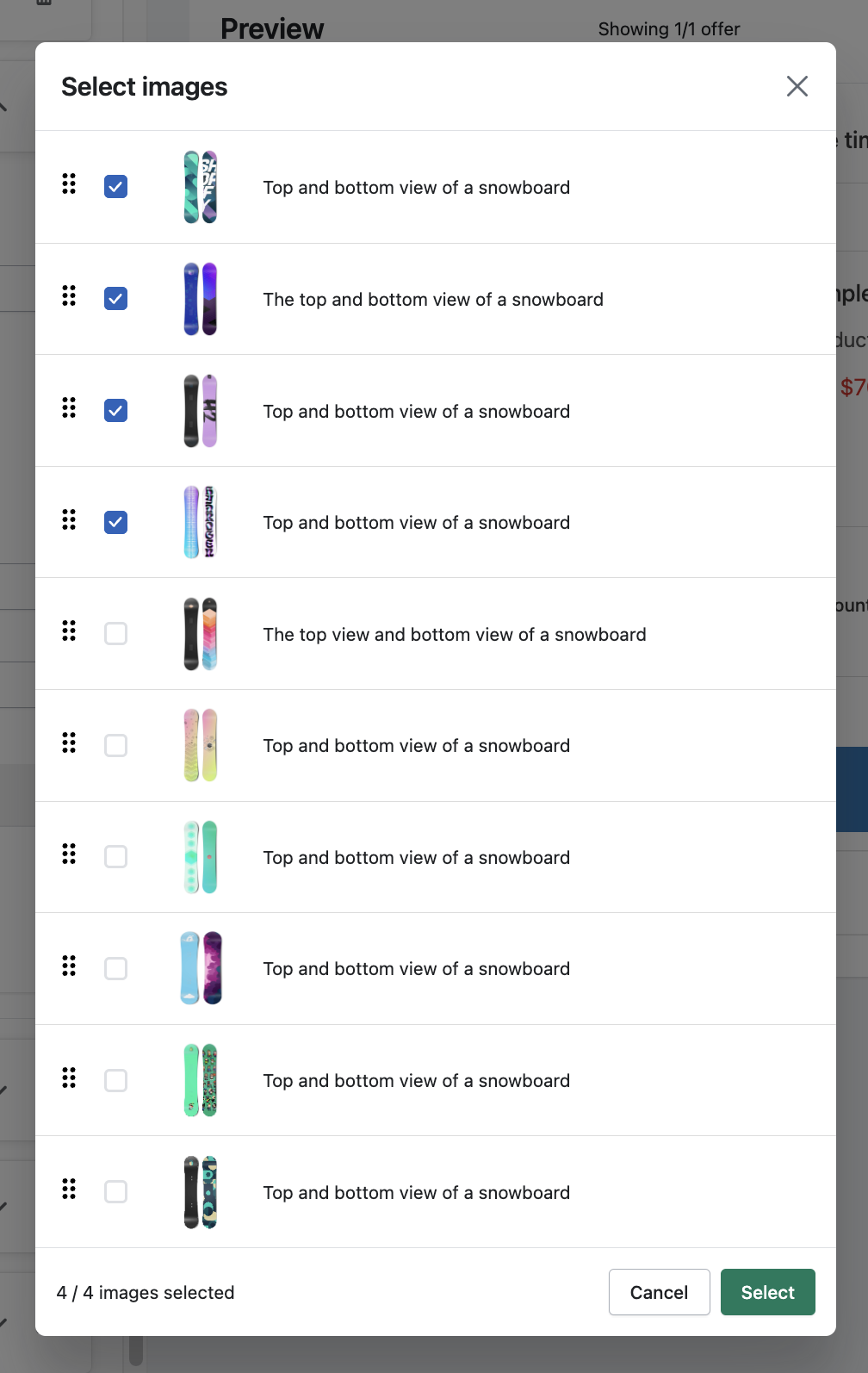
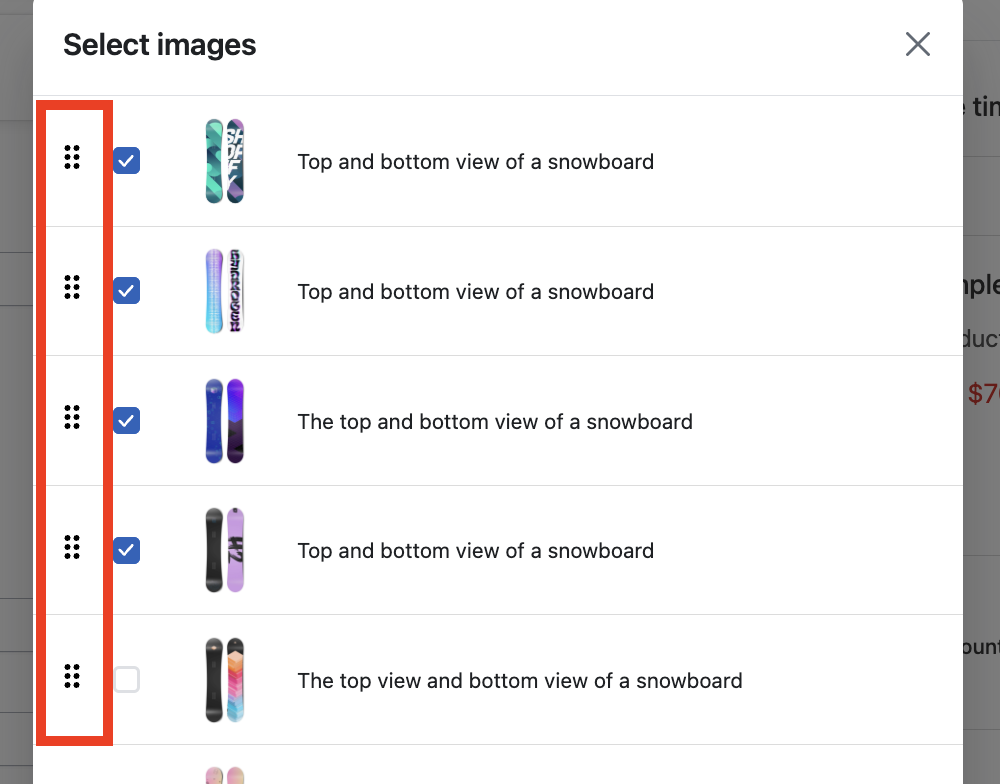
A list of all the available images in the product listing will appear. Choose up to 4.
If you wish to rearrange the image order, you can use the drag handle at the left side of each item to drag the image up or down.
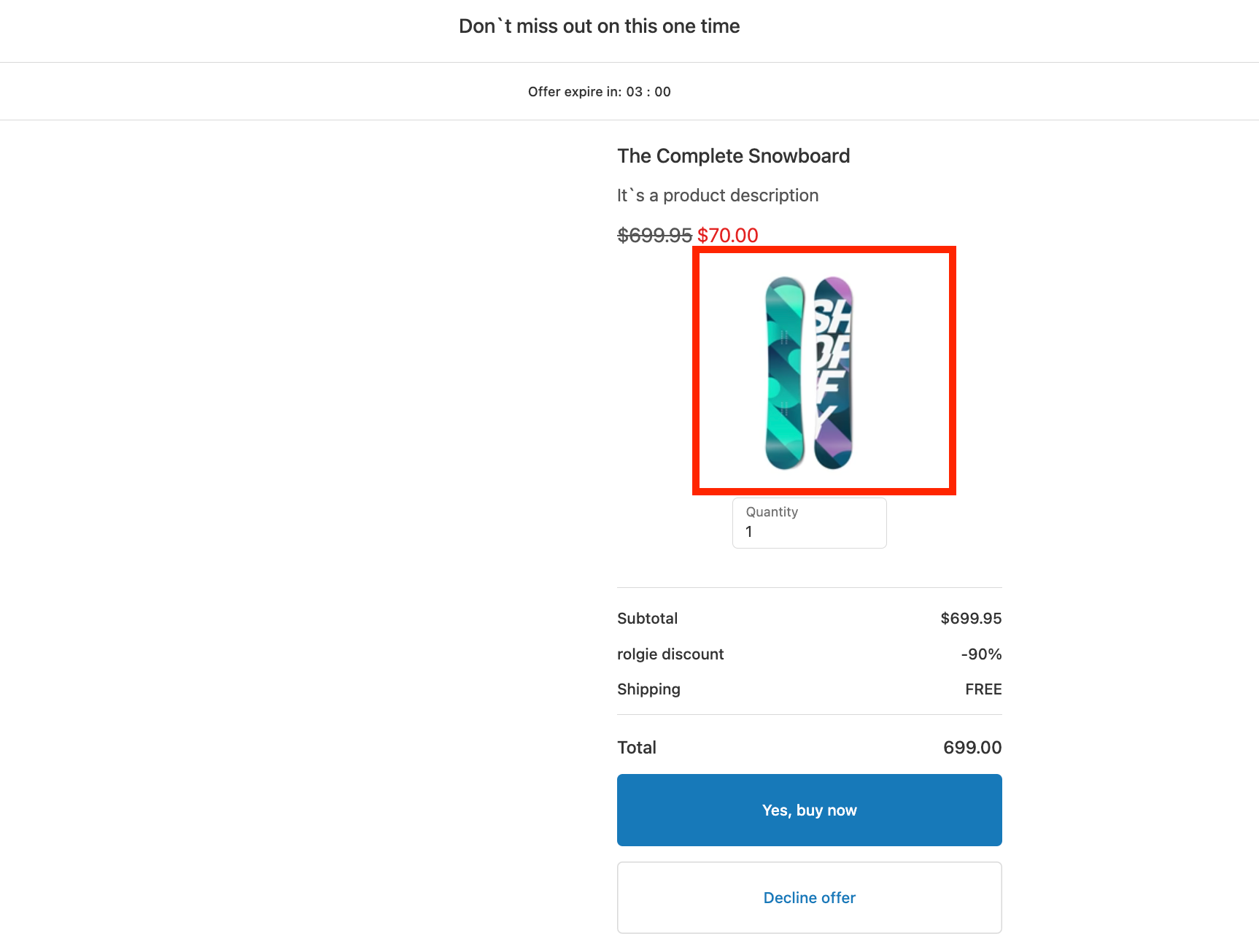
The secondary images will always appear at the bottom of the primary image.
Keywords:
How can I edit and customize product images in SmartFlow's Offer Editor?
What are the options for adjusting the size and slideshow images in SmartFlow's Offer Editor?
How can I edit the "Product Images" in the Offer Editor?