

SmartFlow allows you to add a custom product title to your upsell offer. Here’s how to do it:
Adding a Product Title:
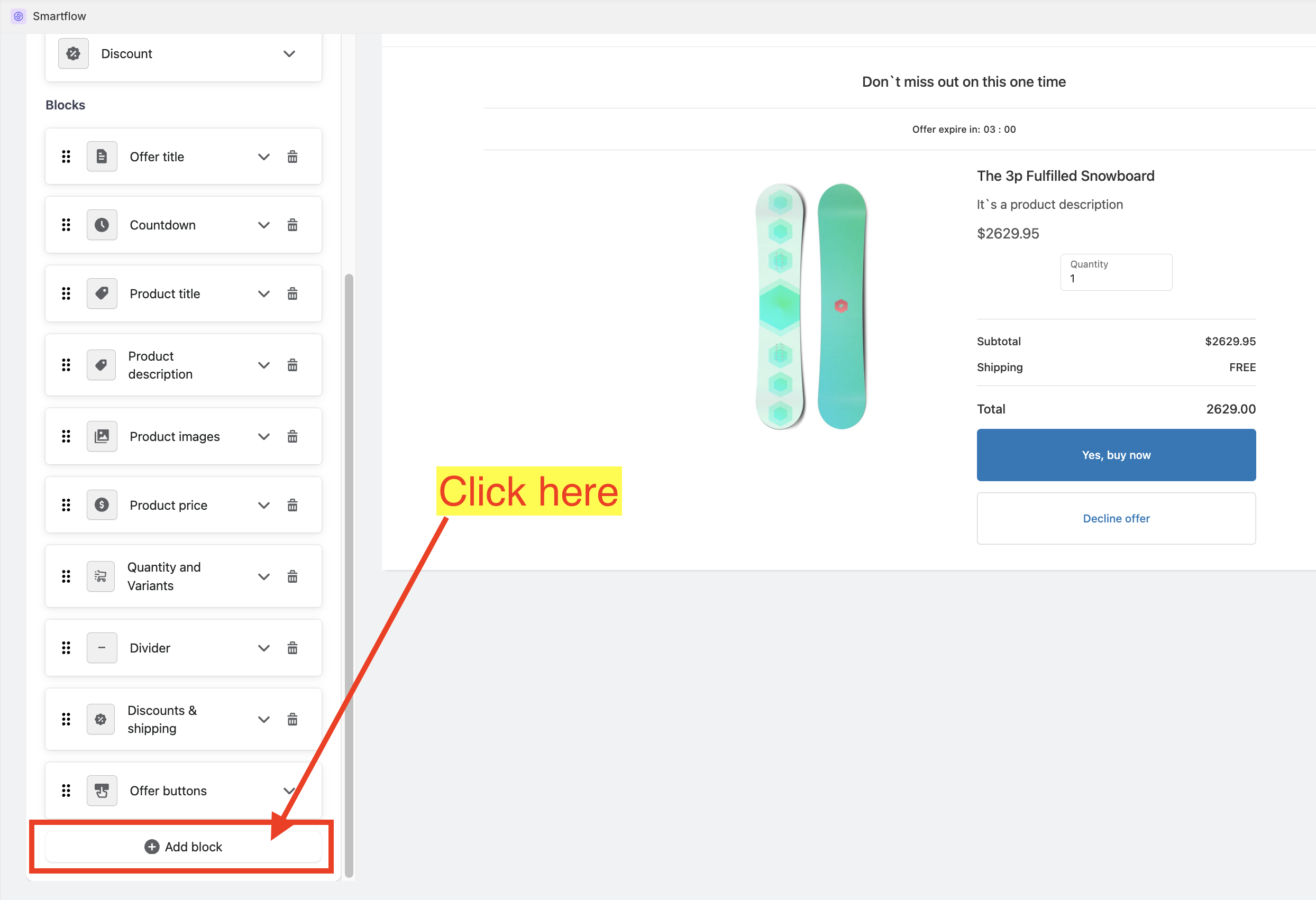
While in the Offer Editor, scroll down until you find the "Add block" button.
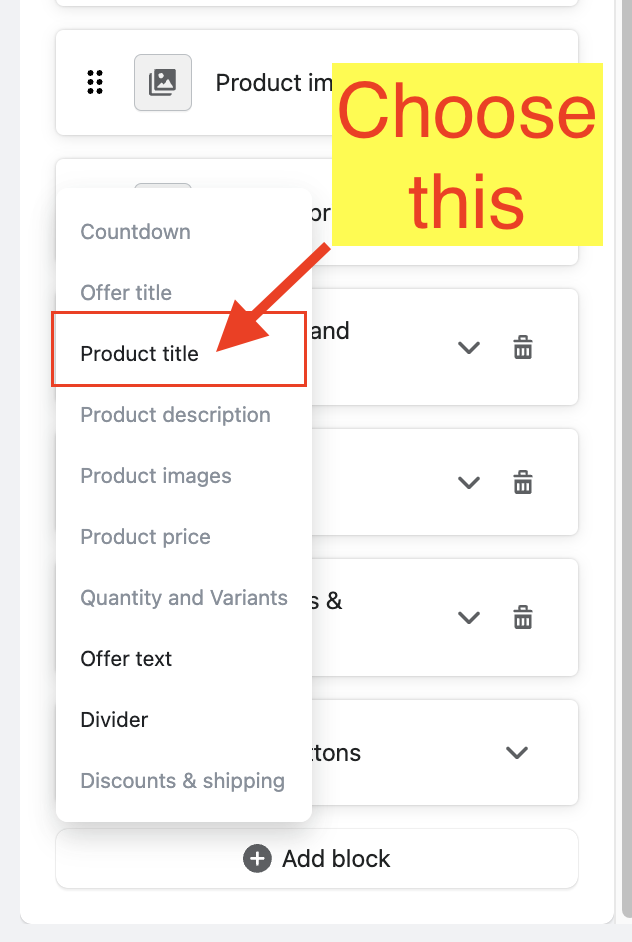
Choose "Product Title".
Customizing the Product Title:
Expand the Product Title Settings card.
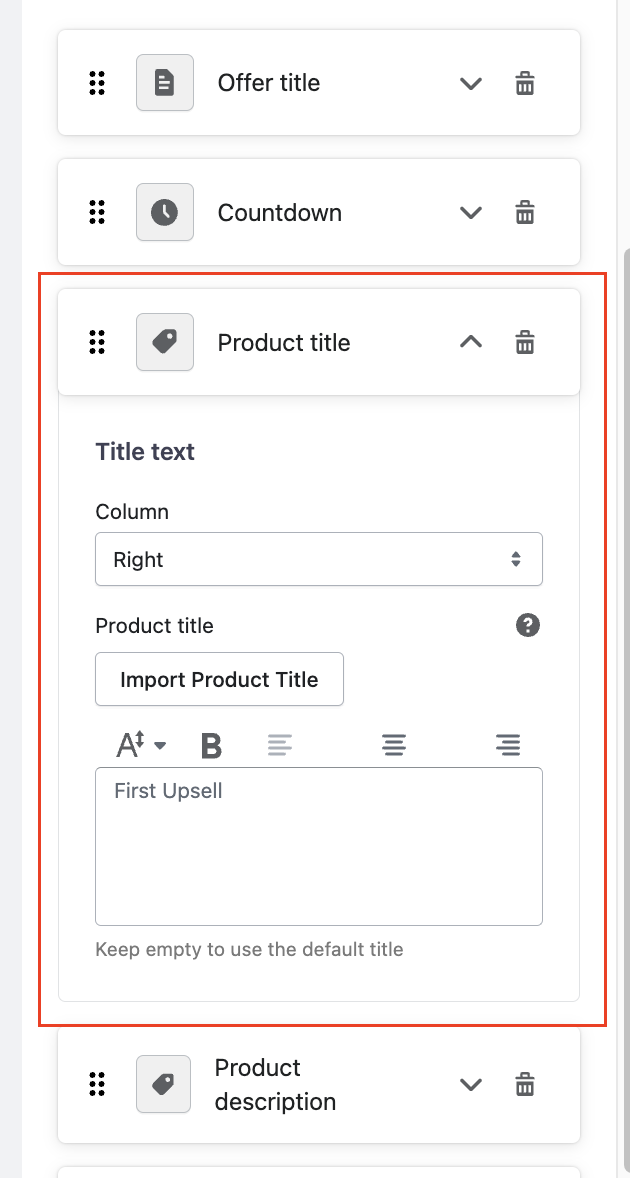
"Column" dropdown.
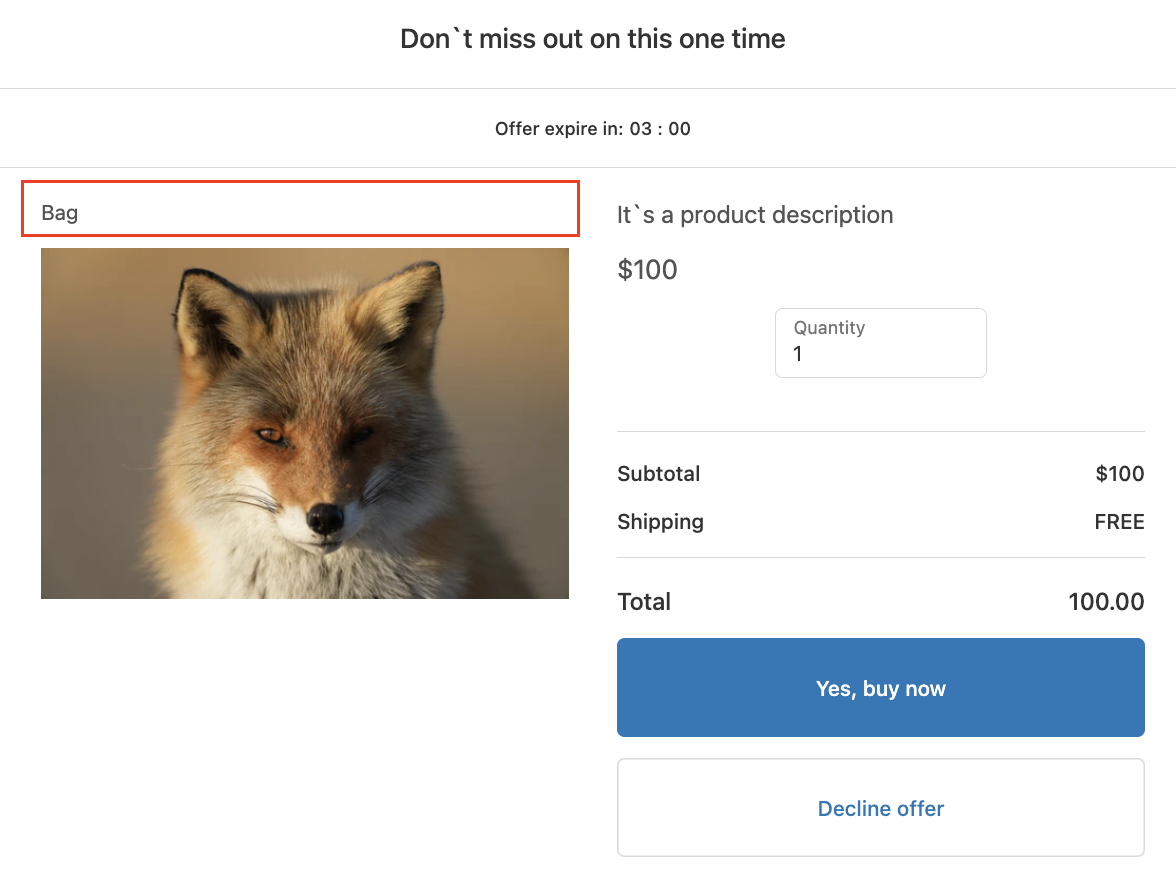
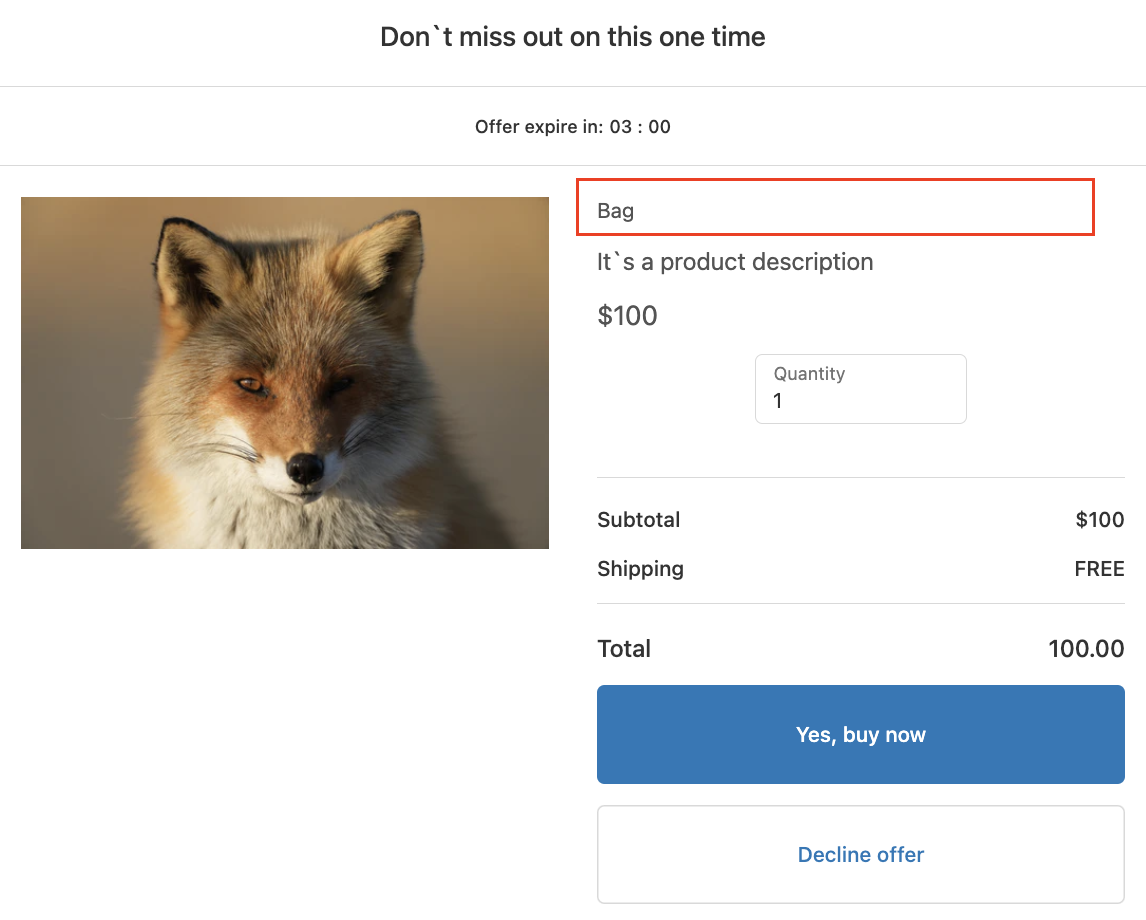
Right - places the Product Title at the right side of the offer.
Left - places the Product Title at the left side of the offer.
Both - places the Product Title at the center of the offer.
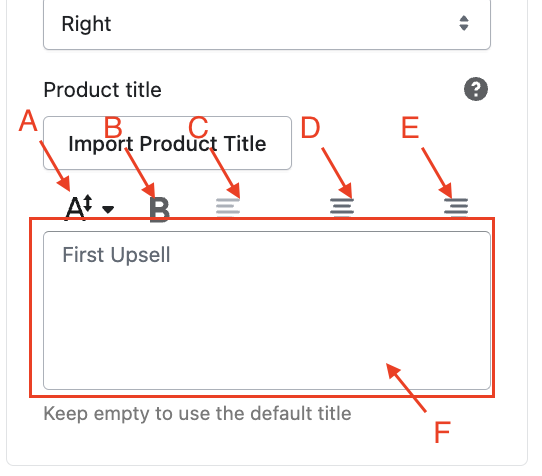
"Product Title" text editor - allows you to customize the product title text. You can do the following:
a. Increase the text size.
b. Make the text bold.
c. Align the text to the left.
d. Align the text to the right.
e. Align the text to the center.
f. Replace the text with a custom one.
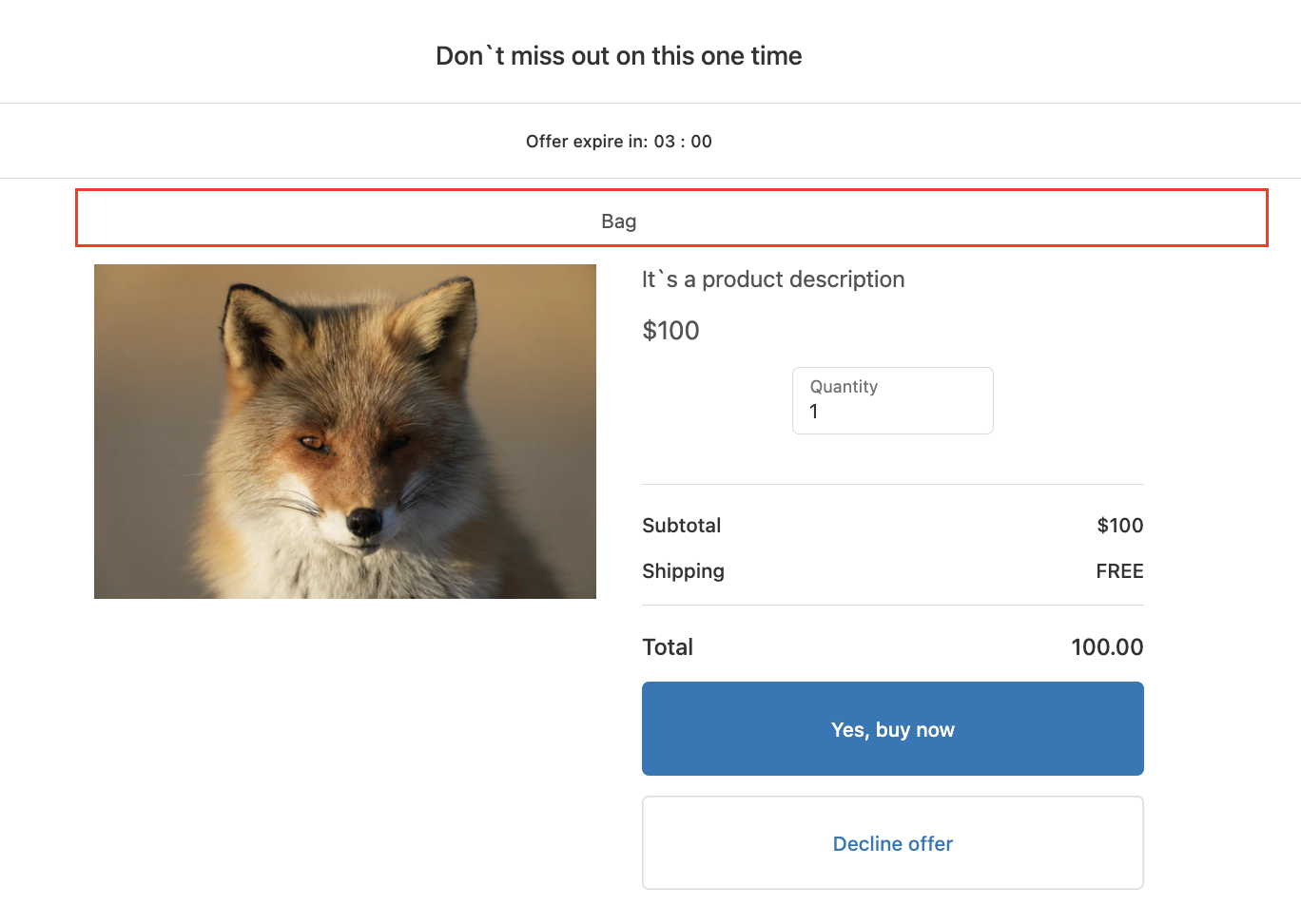
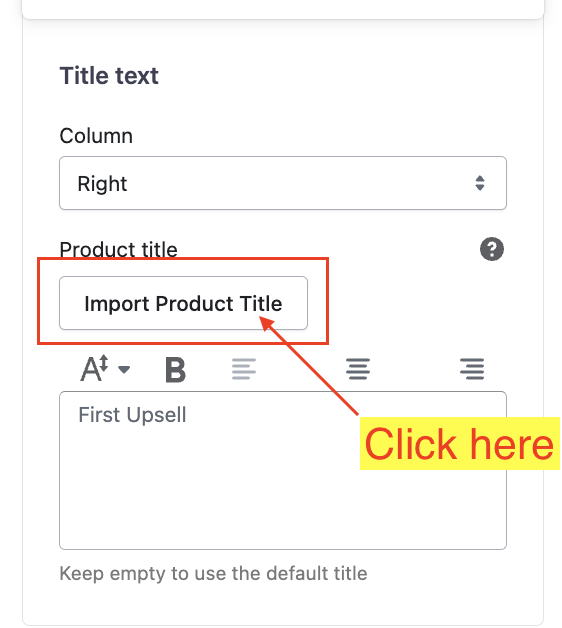
"Import Product Title" button - allows you to revert the product title to its default text.
Keywords:
How can I customize the product title in SmartFlow's Offer Editor?
What formatting options are available for editing the product title in SmartFlow's Offer Editor?
How can I edit the "Product Title" in the Offer Editor?