

Here is a guide on how you can customize your offer buttons:
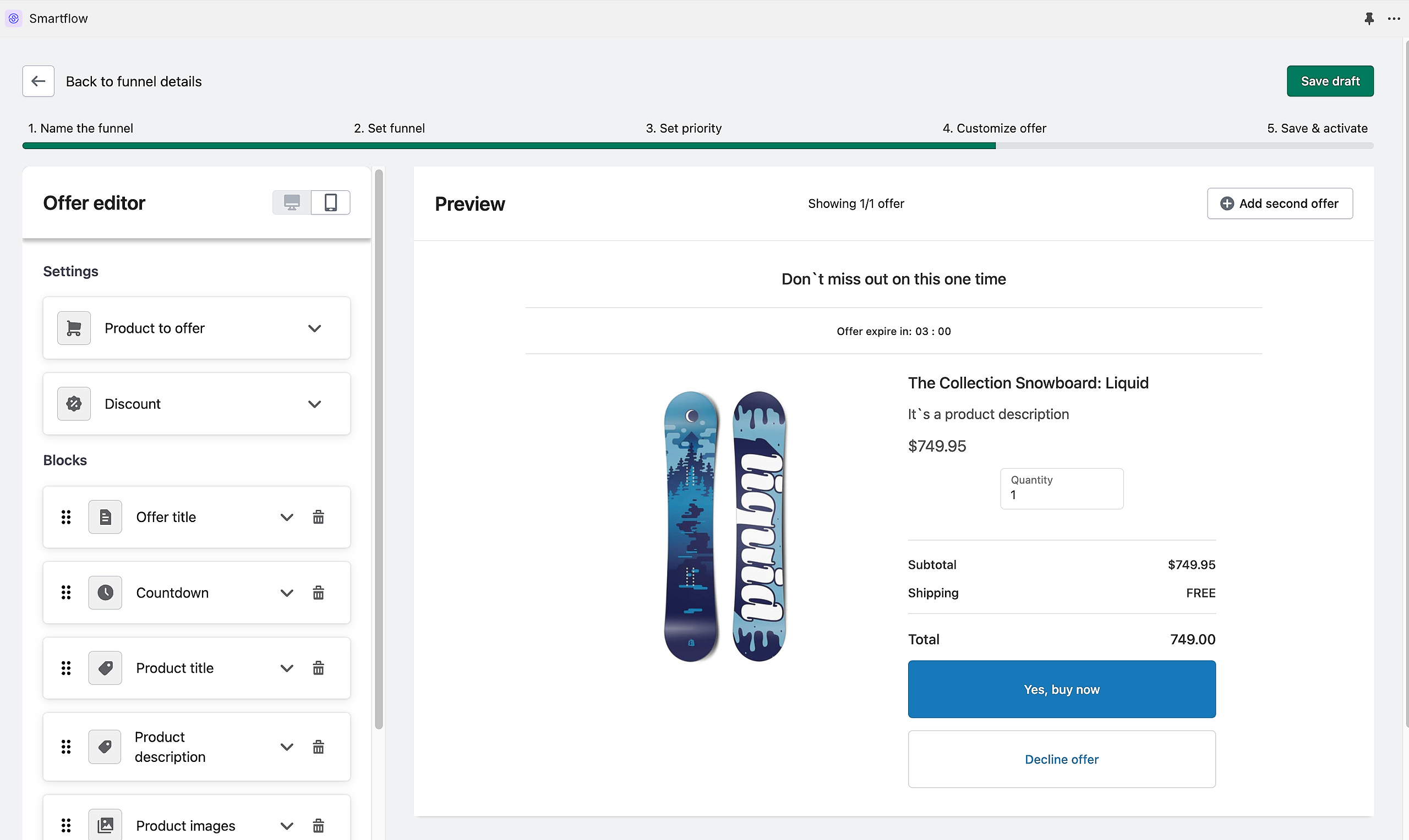
Go to the Offer Editor.
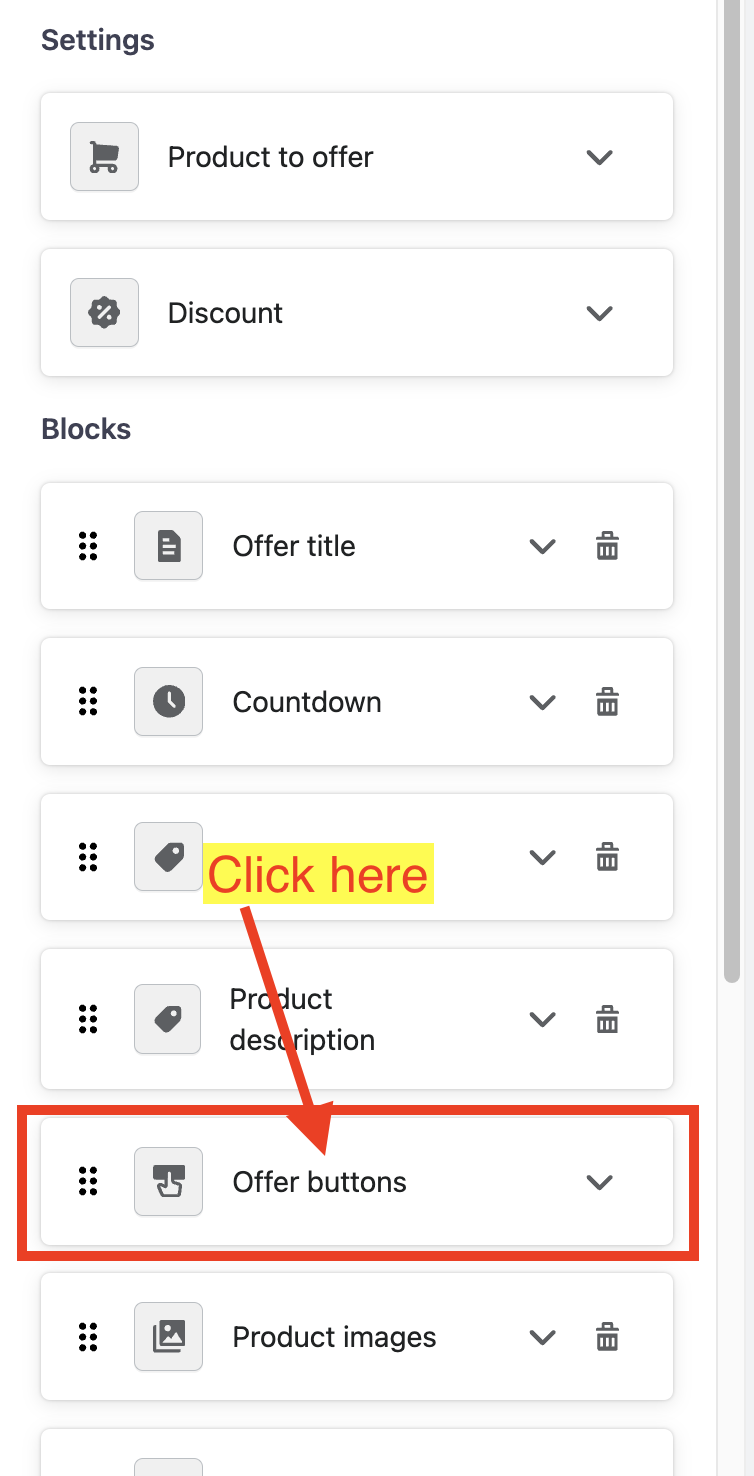
Look for the "Offer buttons" block.
It will show you the customization options.
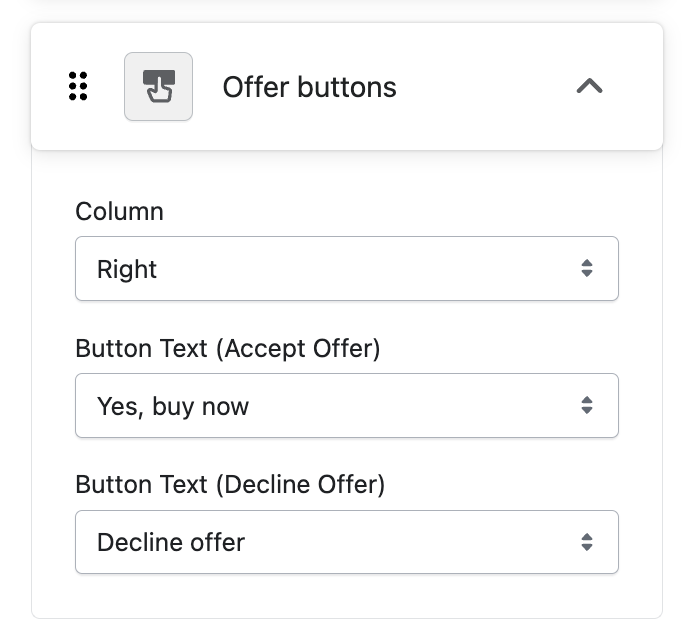
Column
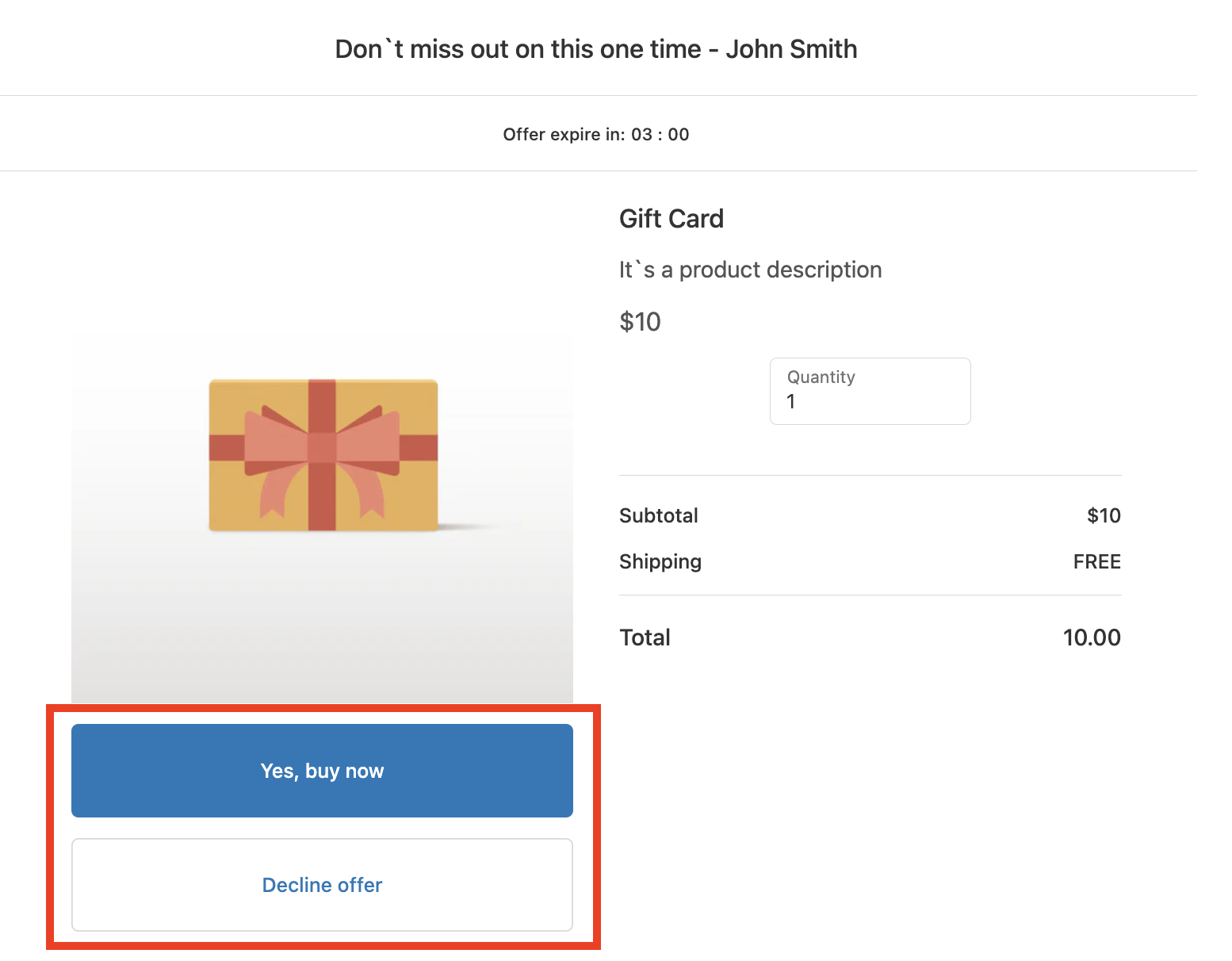
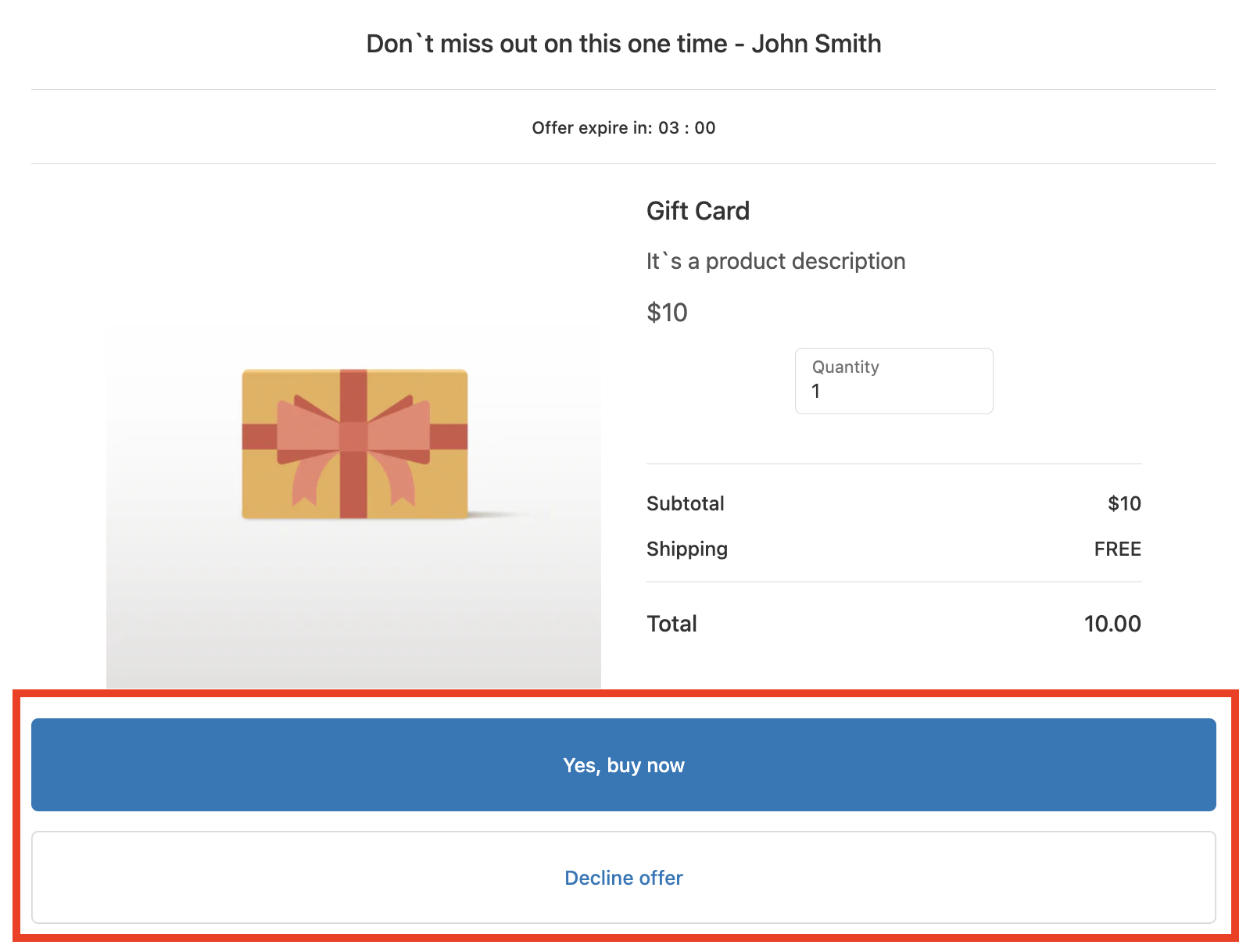
Right - will make your buttons narrower and will place them at the right side of the offer.
Left - will make your buttons narrower and will place them at the left side of the offer.
Both - will make your buttons wider and will place them at the center of the offer.
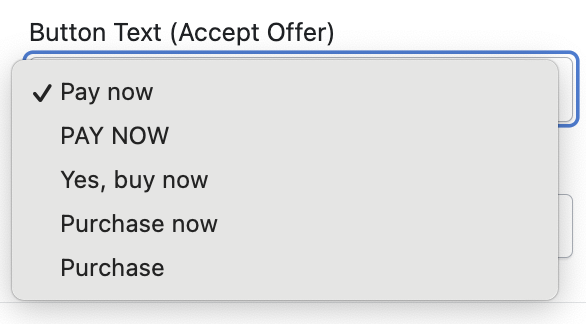
Button Text (Accept Offer) - SmartFlow allows users to select from the available text options:
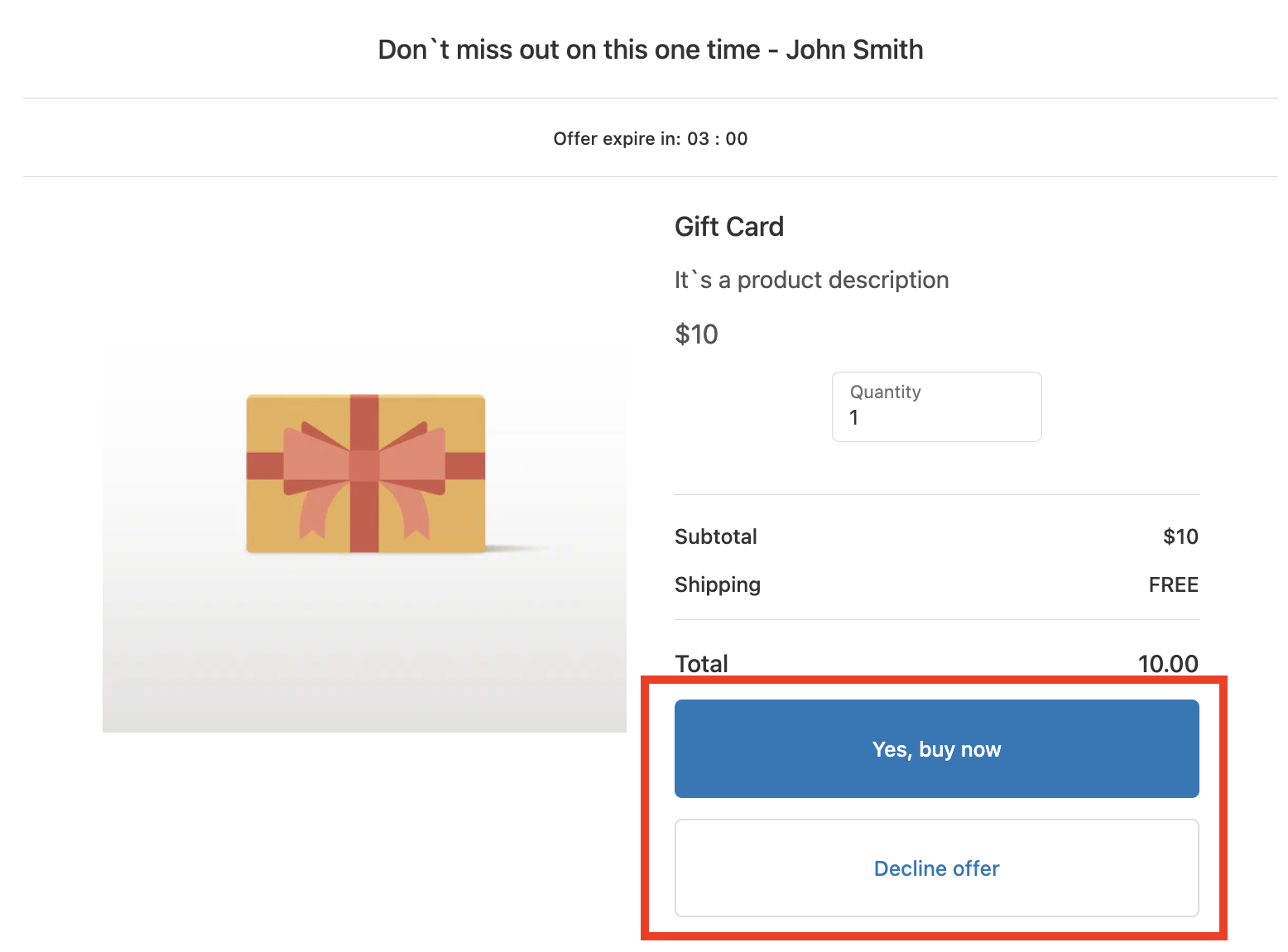
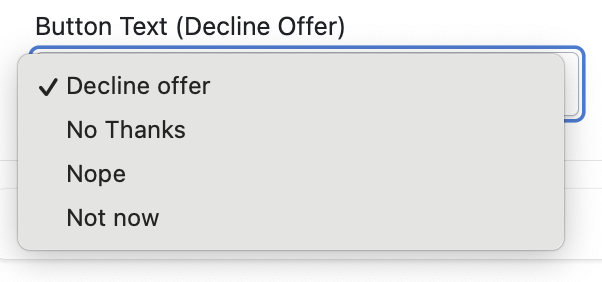
Button Text (Decline Offer) - SmartFlow allows users to select from the available text options:
Keywords:
How can I customize the offer buttons in the SmartFlow Offer Editor?
What alignment options are available for customizing offer buttons in the SmartFlow app?
How do I edit 'Offer buttons' in the Offer Settings?